Getting Started
The NoPass™ for Customers SaaS solution is available on a fee-paying basis with a 30-days free trial period. Customers such as online businesses or developers can subscribe to NoPass™ on the NoPass.us page where the NoPass™ Admin Console is located.
Admin Console overview
The NoPass™ Admin Console provides a flexible environment where you as an administrator can create and manage NoPass™ Workspace services, add or remove users, manage subscriptions, monitor logs, create other administrators, and more.
The NoPass™ Admin Console is available in the browser both on your desktop computer and on your mobile device.
Admin console hierarchy
NoPass™ mechanism is based on a tenancy model and performs a structured approach for managing services. Once you have decided to integrate the NoPass™ authentication tool into your portal and paid a subscription, a Company instance with the corresponding Workspace is created. You can create several Workspaces within a Company, however, every new Workspace assumes a new subscription and particular product options. Each Workspace performs as a separate tenant allowing you to create services where the NoPass™ authentication method will be used. Each Workspace contains the relevant services and user sets.
Admin console essentials
Find the snapshot of the main features provided by the NoPass™ Admin Console:
|
Feature |
Description |
|
Get access and sign in to the Admin Console. |
|
|
Manage administrator access: assign administrator roles, view a list of permissions, remove administrators |
|
|
Manage Company: customize, lock and remove Company. |
|
|
Add and remove Workspaces, apply security and other settings. |
|
|
View and register services, apply configuration parameters, remove services. |
|
|
Manage subscriptions: view and change subscription options, cancel subscriptions, view and change payment info. |
|
|
Create, modify and remove user accounts. |
|
|
Manage and view logs. |
The NoPass™ Administrator journey
1. To start using NoPass™ for Customers SaaS solution, go to NoPass.us.
Desktop view Mobile view
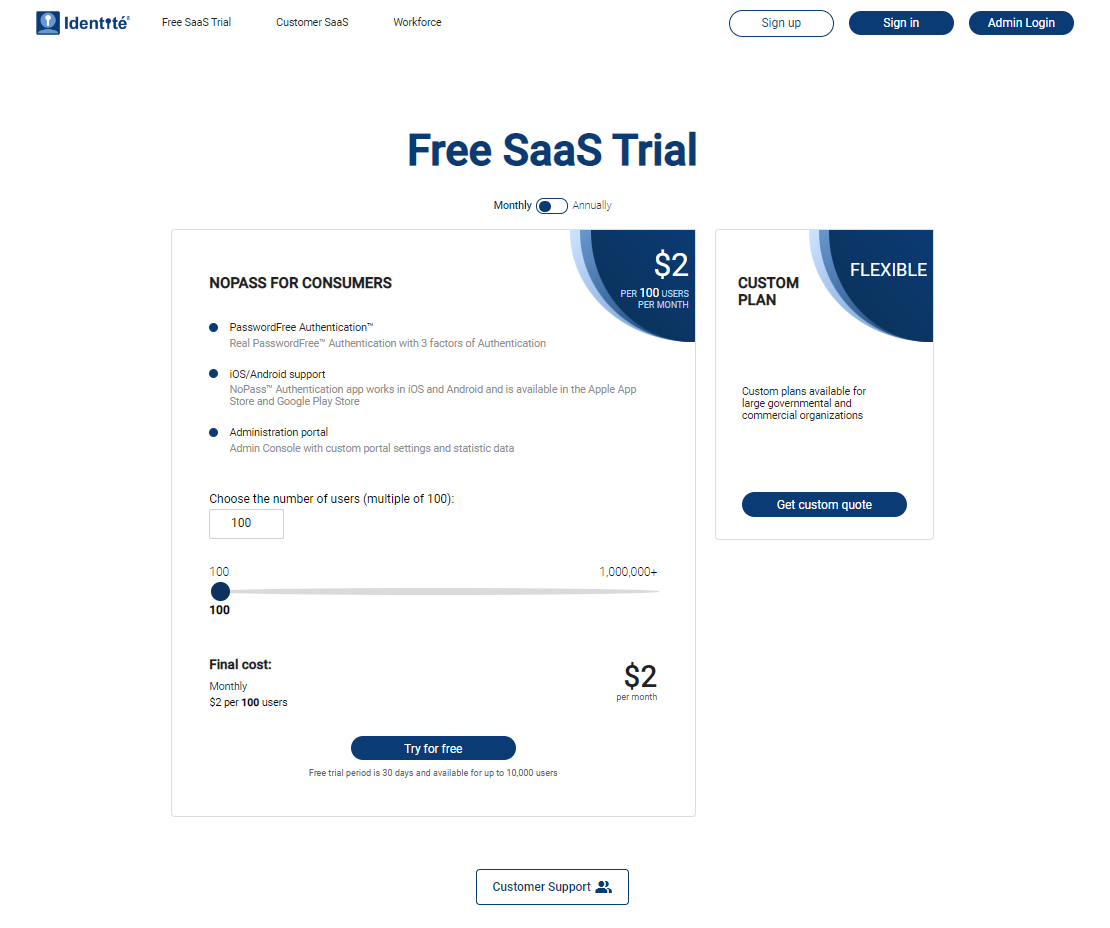
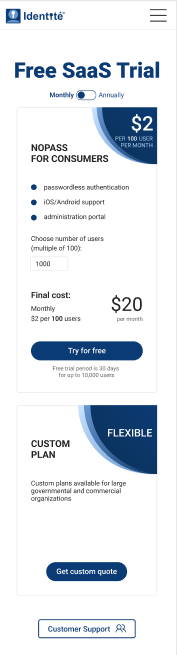
2. From NoPass.us, you can perform the following actions:
- To Sign in to your Profile,
- click the Sign in button on your desktop.

- tap the hamburger menu in the upper right corner of your mobile device screen, then tap Sign in.
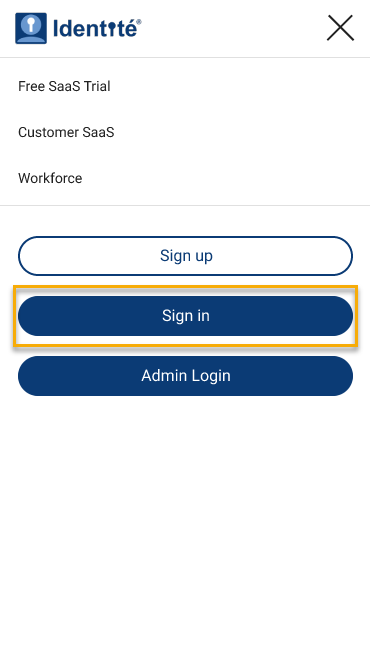
For more details about Profile, go to Profile.
- To sign in to the Admin Console,
- click the Admin Login button on your desktop.

- tap the hamburger menu in the upper right corner of your mobile device screen, then tap Admin Login.
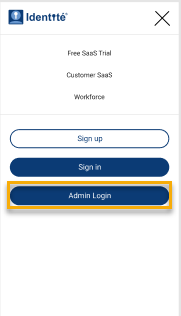
For more details, go to Sign in to Admin Console.
- To create your Profile,
- click the Sign up button.

- tap the hamburger menu in the upper right corner of your mobile device screen, then tap Sign up.
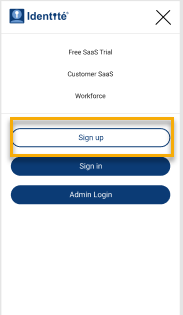
For more details, go to Register your Profile.
3. To get more information about Identité®, click or tap 
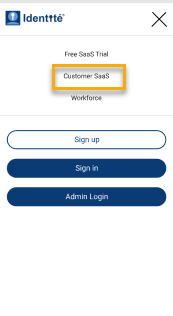
4. To get more information about the NoPass™ for Customers SaaS solution, click Customer SaaS on your desktop or tap the hamburger menu in the upper right corner of your mobile device screen, then, tap Customer SaaS.
Desktop view

Mobile view
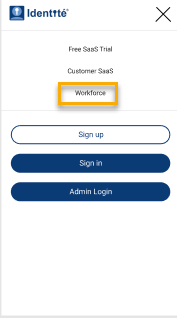
5. To get more information about using the NoPass™ for Customers SaaS solution for your employees, click Workforce on your desktop or tap the hamburger menu in the upper right corner of your mobile device screen, then, tap Workforce.
Desktop view

Mobile view
6. There are two subscription plans available to NoPass™ for Customers SaaS solution users: a standard plan with a 30-day free trial period and a custom plan to be discussed with the customer on a case-by-case basis. To start your free trial period, study the information and click or tap Try for free.
Desktop view Mobile view
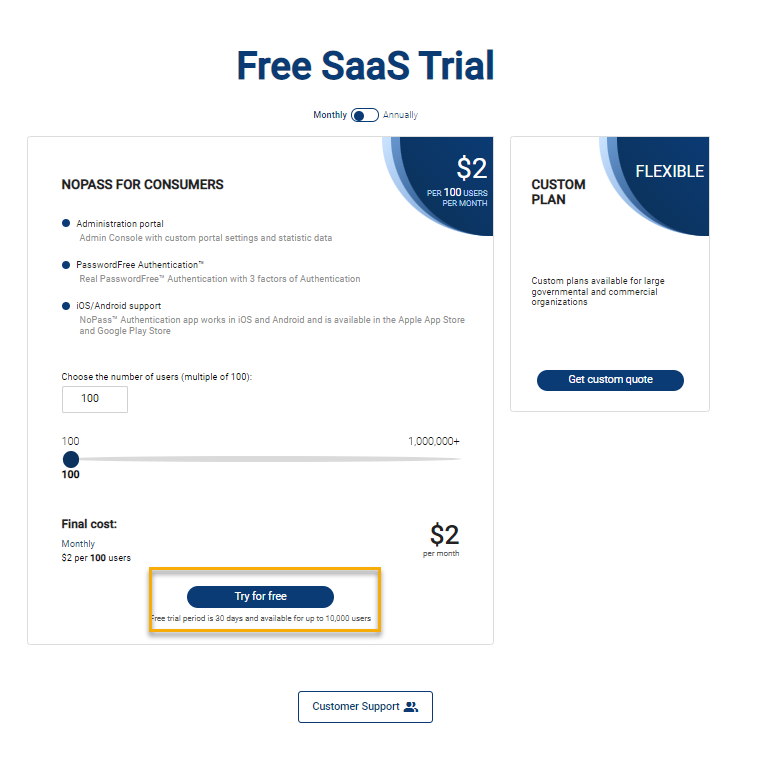
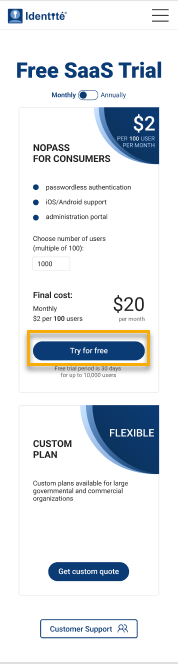
For more details about the Subscription, go to Subscribe to a standard plan.
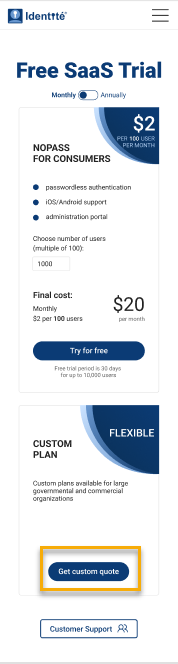
7. To get information about the custom plan terms and conditions, click or tap Get custom quote.
Desktop view Mobile view

8. If you have a question or an issue to report, click Customer Support.
Desktop view Mobile view
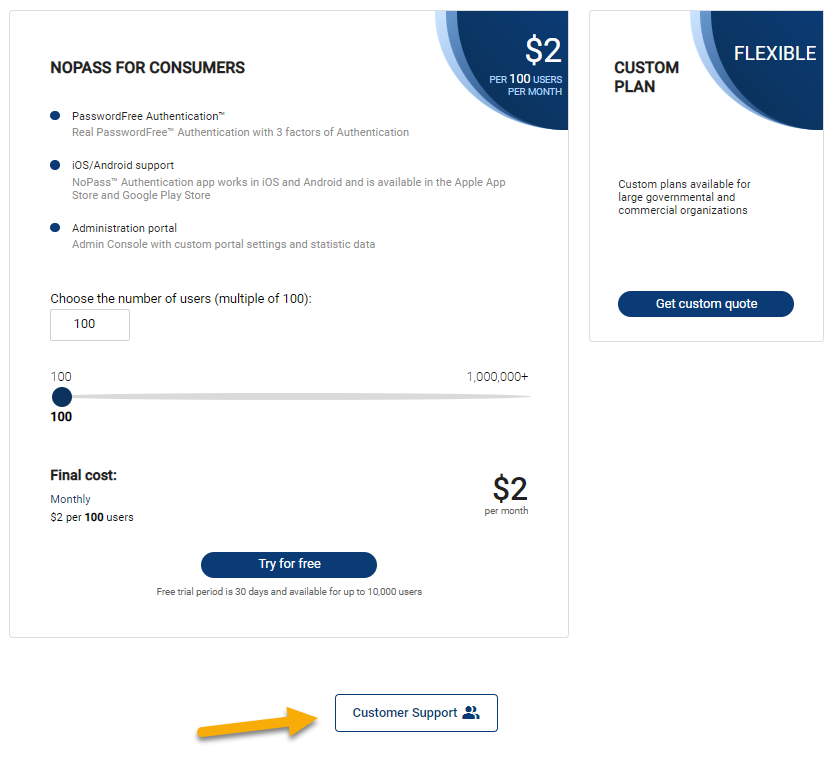
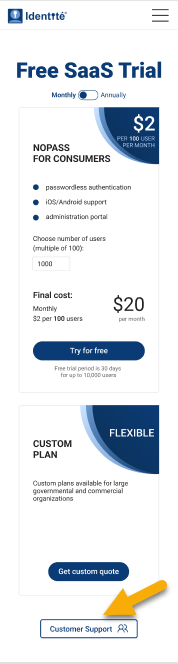
In case you need more help, don't hesitate to Submit ticket or email Support.
next topic: Sign in to Admin Console
previous topic: NoPass™ SDK for React