Sign in to your Profile
The Admin Console is available only to users with the NoPass™ Profile created. For more details on Profile, go to Profile. On the NoPass.us page, you can both create your Profile and sign in to the already existing Profile.
To learn how to create the NoPass™ Profile on the NoPass.us page, go to Register your Profile.
To sign in to the already existing NoPass™ Profile on the NoPass.us page, perform the following actions:
Procedure
The NoPass™ Admin Console is available in the browser both on your desktop computer and on your mobile device.
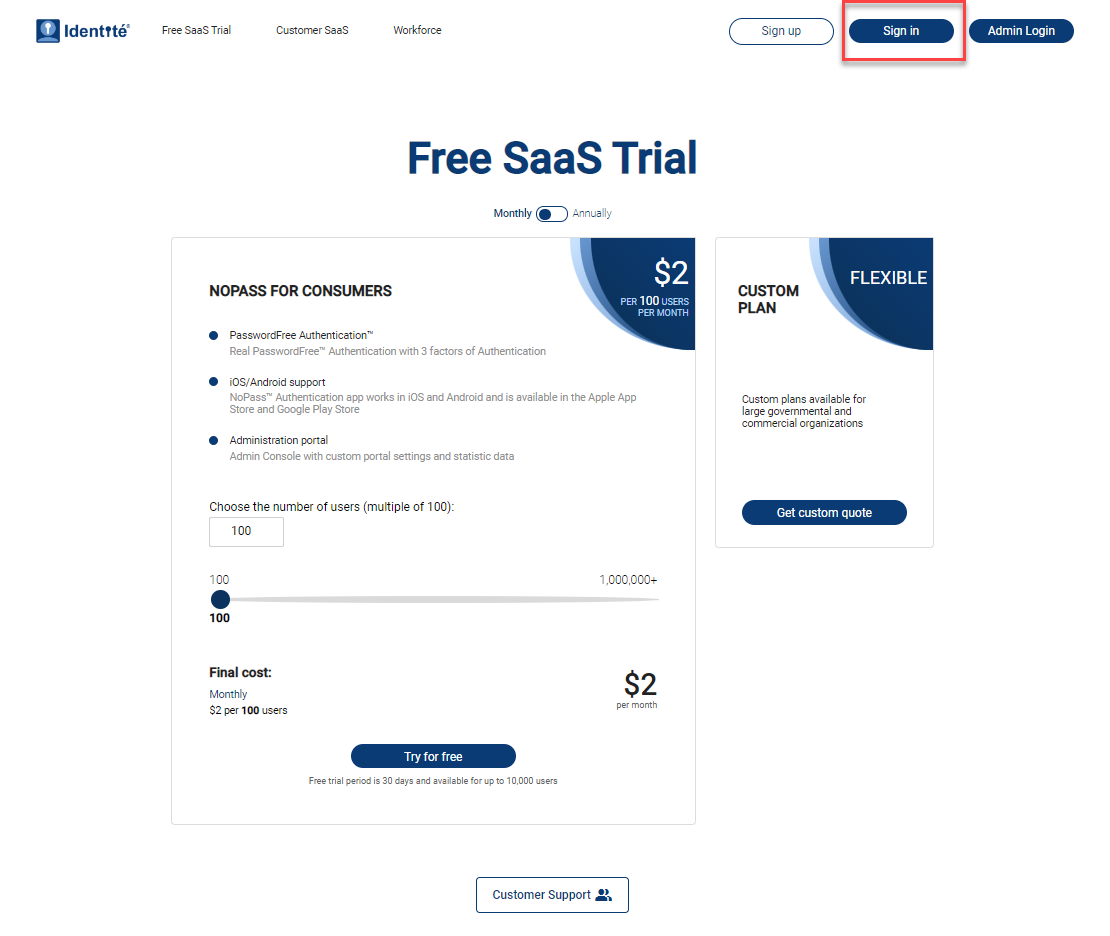
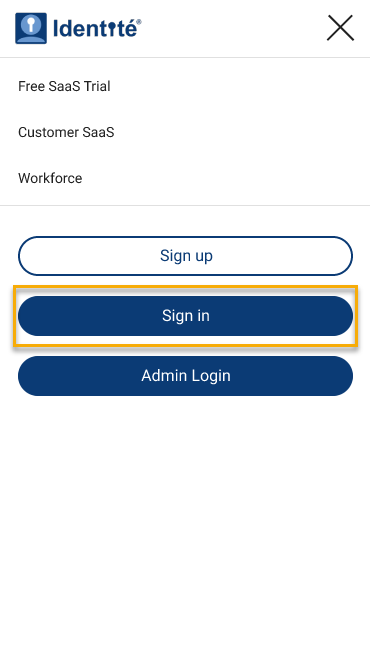
1. Open the NoPass.us page on your desktop computer or your mobile device and perform one of the following actions:
- On your desktop, click Sign in.
- On your mobile device, tap the hamburger menu in the upper right corner of your screen and tap Sign in.
Desktop view Mobile view
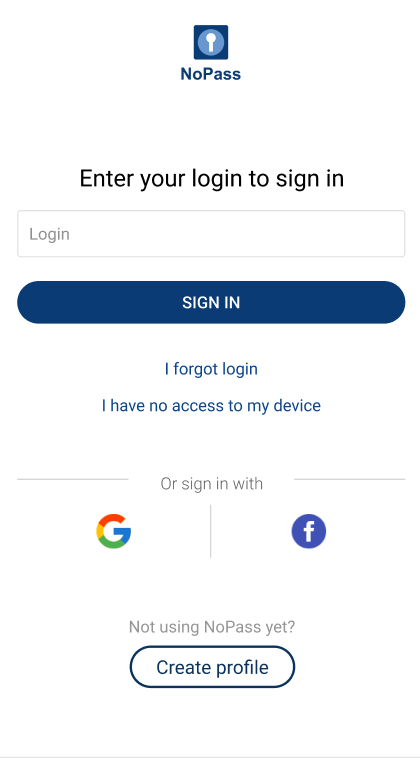
2. On the authentication page, perform the following steps:
Desktop view Mobile view
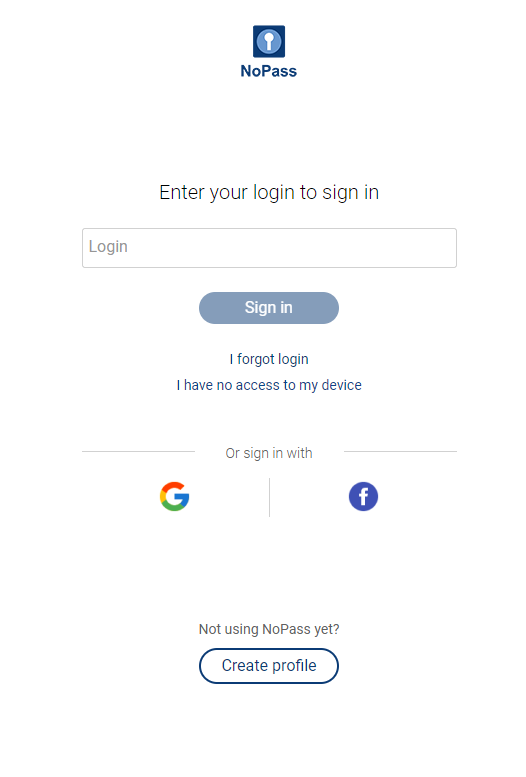
i. On your desktop, perform one of the following actions:
- Enter your login and click Sign in.
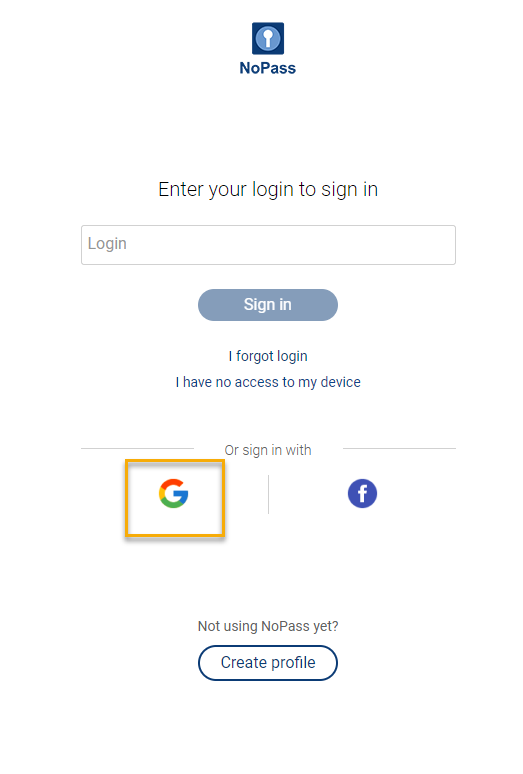
- Click the Google icon to sign in with your Google account and choose the Google account that was used for the Profile creation or create a new Google account.
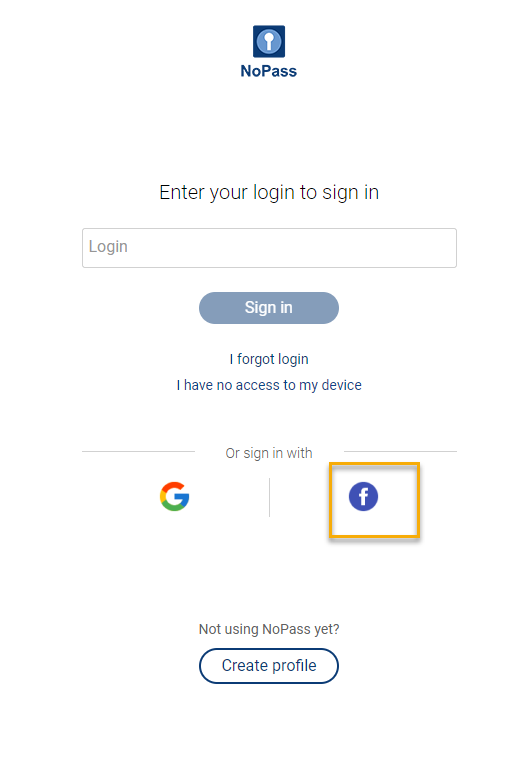
- Click the Facebook icon, sign in to your Facebook account or create a new account. Remember to register your Facebook account with your valid email address, otherwise, your Facebook account won't be available to the NoPass™ app.
For more details, go to Sign in to your Profile.
ii. On your mobile device, perform one of the following actions:
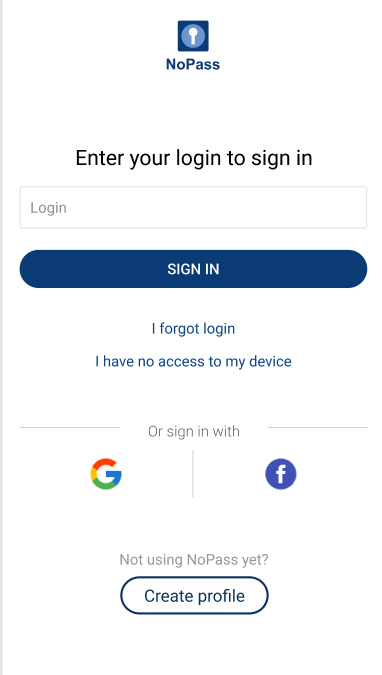
- Enter your login and tap Sign in.
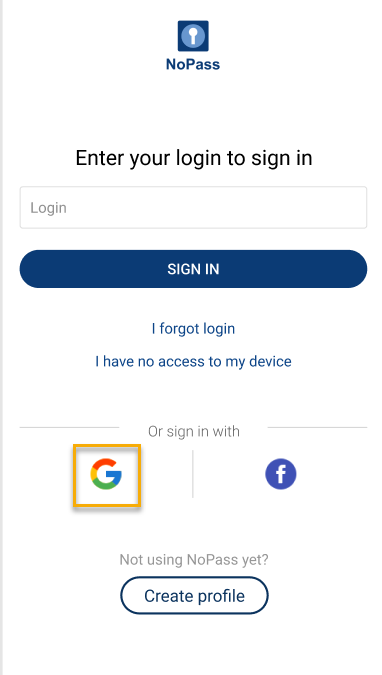
- Tap the Google icon to sign in with your Google account and choose the Google account that was used for the Profile creation or create a new Google account.
- Tap the Facebook icon, sign in to your Facebook account or create a new account. Remember to register your Facebook account with your valid email address, otherwise, your Facebook account won't be available to the NoPass™ app.
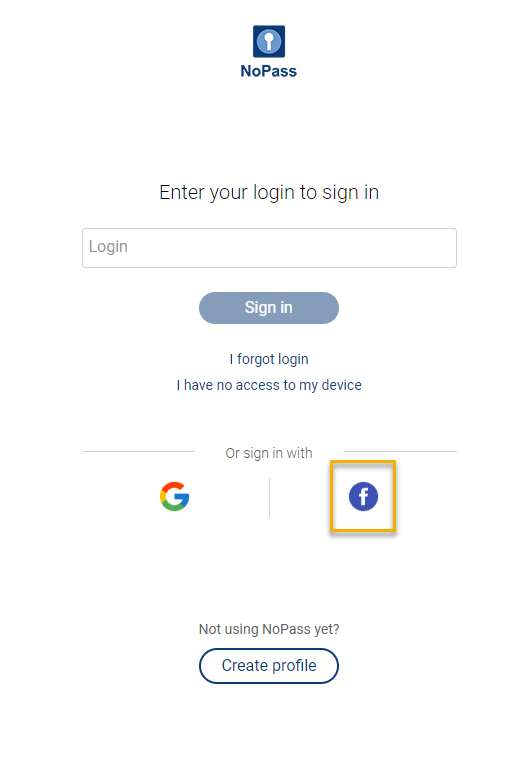
For more details, go to Sign in to your Profile.
3. To complete the authentication process, accept the push notification:
i. On your desktop computer:
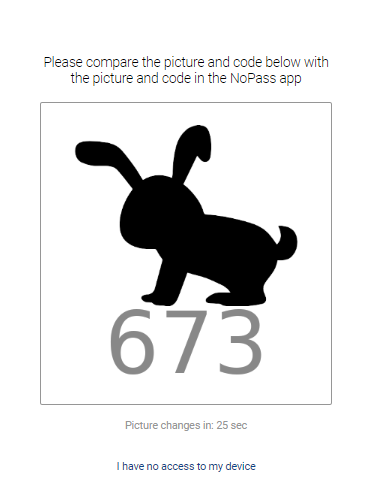
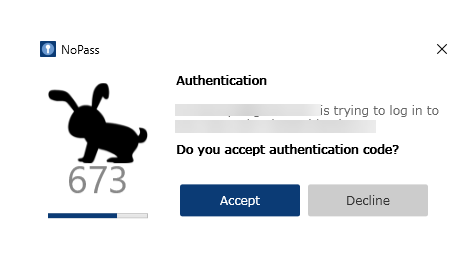
- Compare the picture and three-digit code on your login page with the one appearing on any of your signed-in to NoPass™ profile devices. If they are the same, tap Accept on the push notification on your mobile device or click Accept in the NoPass™ Desktop application.
The picture and code in the browser The picture and code in the Desktop app
The picture and code in the mobile app
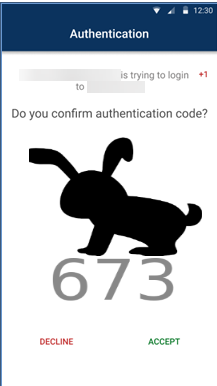
ii. On your mobile device:
- Compare the picture and three-digit code on your mobile device with the one appearing on any of your signed-in to NoPass™ profile devices. If they are the same, tap Accept on the push notification on your mobile device.
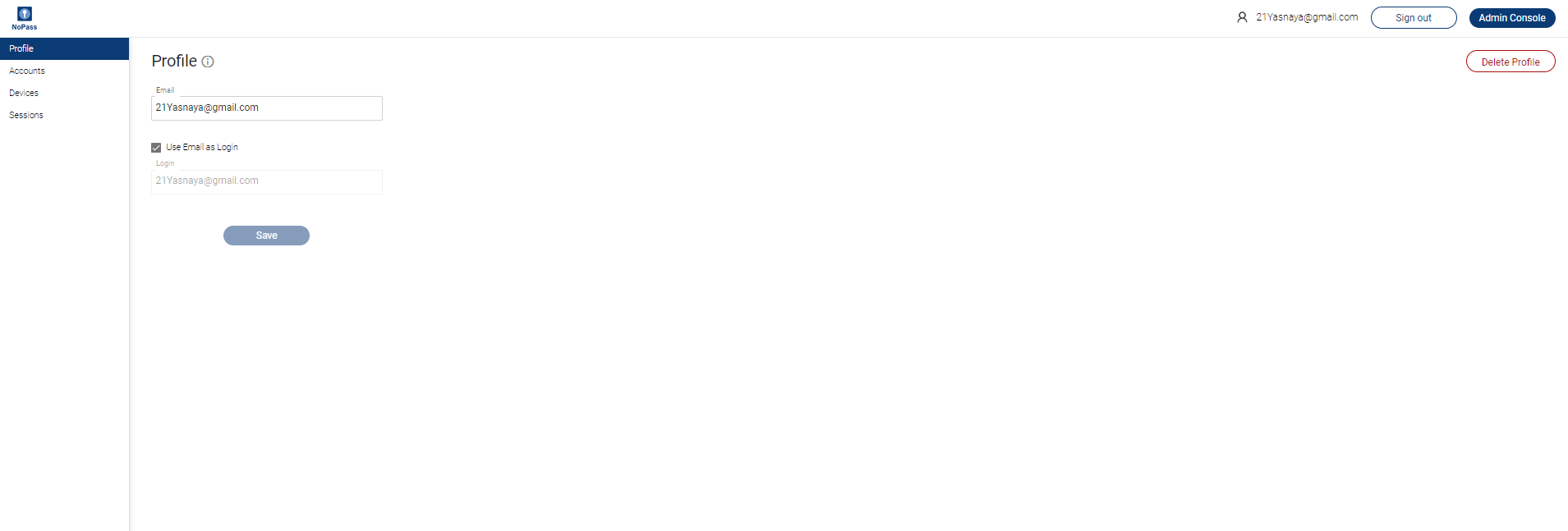
4. After you have successfully authenticated, you are redirected to your Profile.
next topic: Register your Profile
previous topic: Sign in to Admin Console