Register your Profile
The Admin Console is available only to users with the NoPass™ Profile created. For more details on Profile, go to Profile. On the NoPass.us page, you can both create your Profile and sign in to the already existing Profile.
To sign in to the already existing NoPass™ Profile on the NoPass.us page, go to Sign in to your Profile.
To register your Profile in the Admin Console, perform the following steps.
Procedure
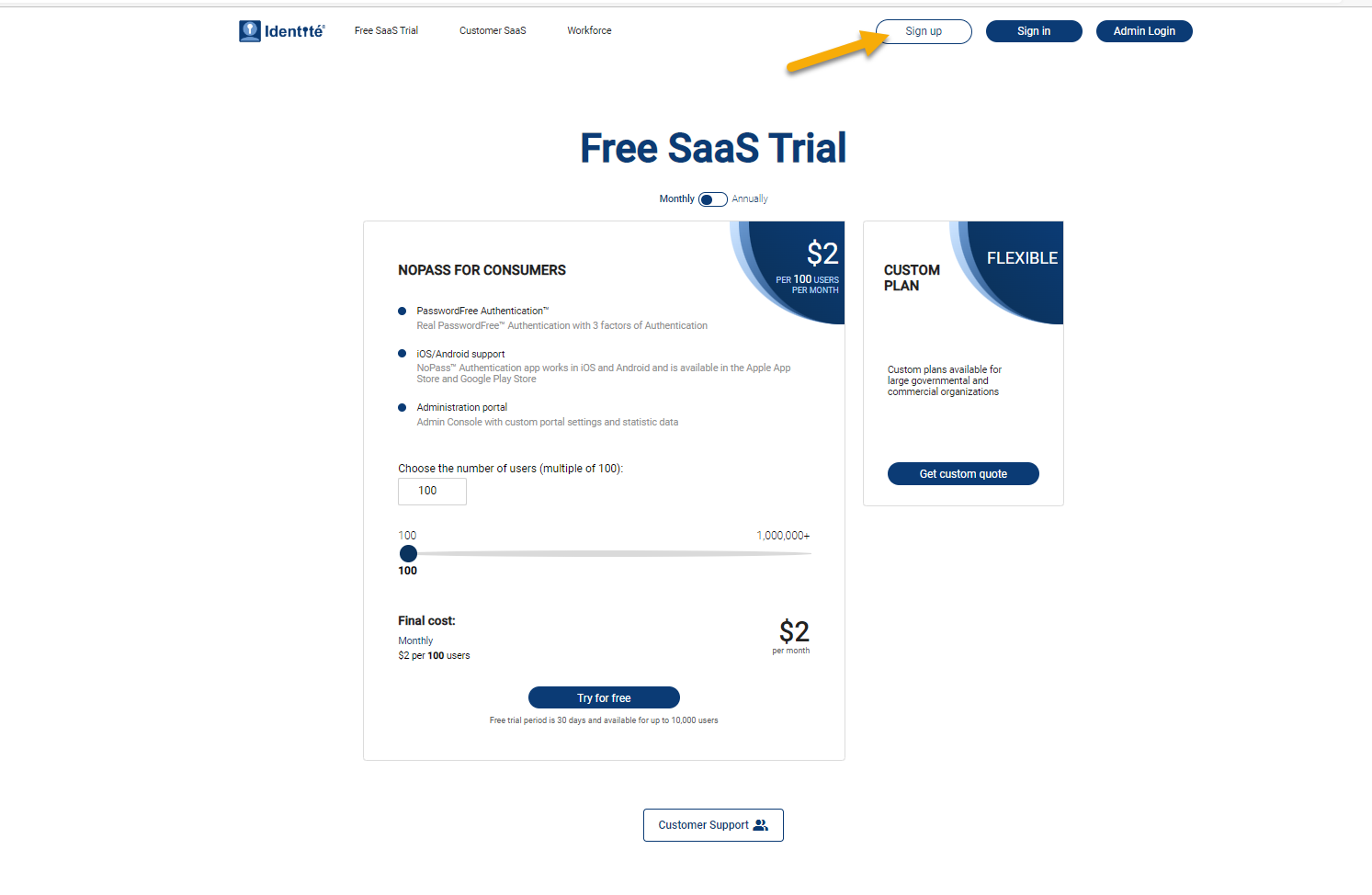
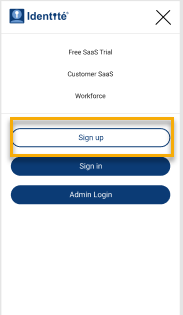
1. Open the NoPass.us page on your desktop computer or your mobile device and perform one of the following actions:
- On your desktop, click Sign up.
- On your mobile device, tap the hamburger menu in the upper right corner of your screen and tap Sign up.
Desktop view Mobile view
2. On the Profile registration page, perform the following actions:
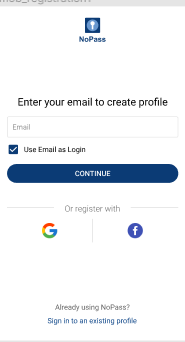
Desktop view Mobile view
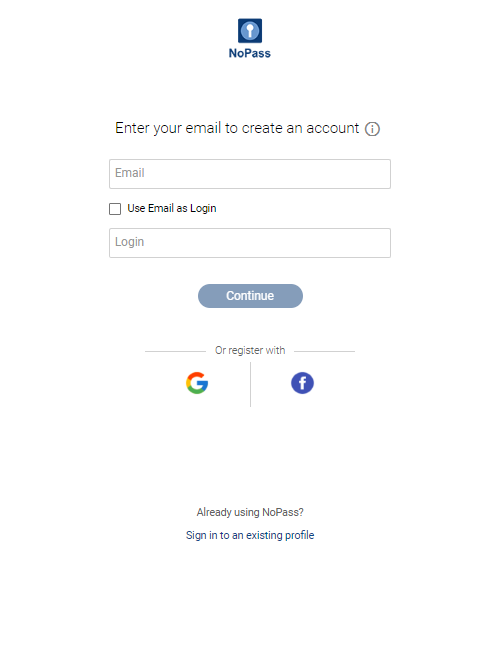
i. On your desktop, perform one of the following steps:
- Fill in the Email field, perform one of the following actions, and click Continue.
- In the Login field, enter a unique login.
- Select the Use Email as Login check box.
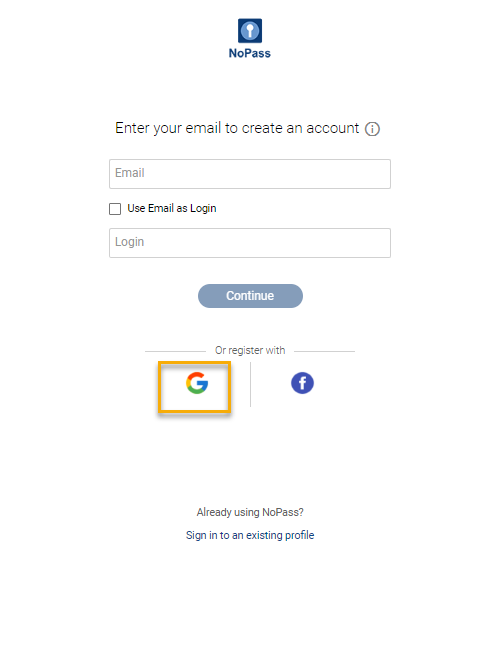
- Click the Google icon to register with your Google account and choose the Google account that you plan to use for the Profile creation. Remember that you will have to choose the same Google account to sign in to your Profile in the future.
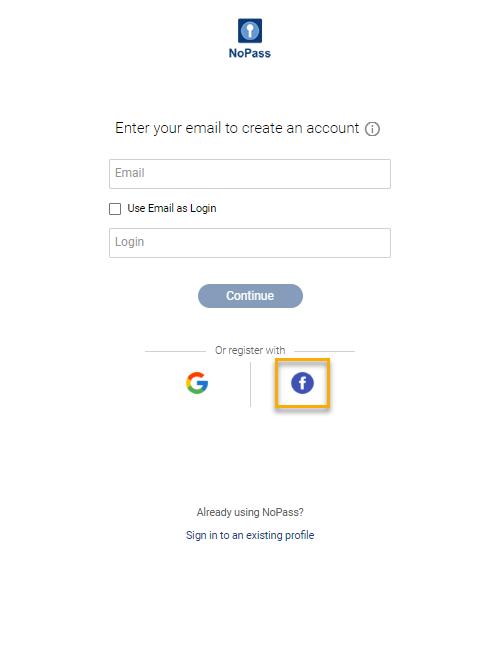
- Click the Facebook icon, sign in to your Facebook account or create a new account. Remember to register your Facebook account with your valid email address, otherwise, your Facebook account won't be available to the NoPass™ app.
ii. On your mobile device, perform one of the following steps:
- Fill in the Email field and tap Continue.
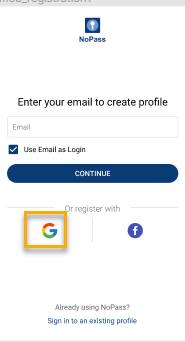
- Tap the Google icon to register with your Google account and choose the Google account that you plan to use for the Profile creation. Remember that you will have to choose the same Google account to sign in to your Profile in the future.
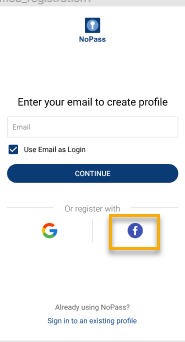
- Tap the Facebook icon, sign in to your Facebook account or create a new account. Remember to register your Facebook account with your valid email address, otherwise, your Facebook account won't be available to the NoPass™ app.
For more details, go to Create Profile.
3. Check your email box and click or tap the link in the received email message to confirm registration.
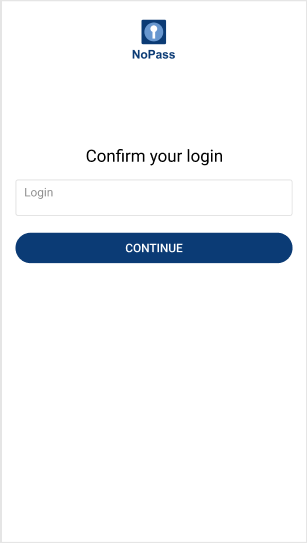
4. On the confirmation page, enter your login and click or tap Continue.
Desktop view Mobile view

5. Perform the following actions:
i. On your desktop computer:
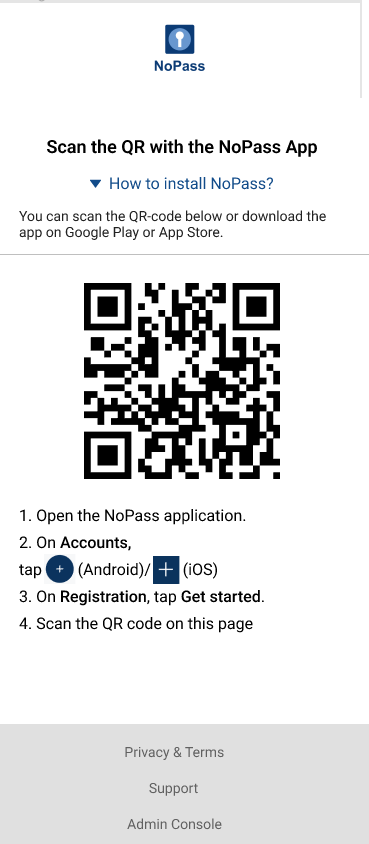
1) Follow the instructions on the page with the QR code.
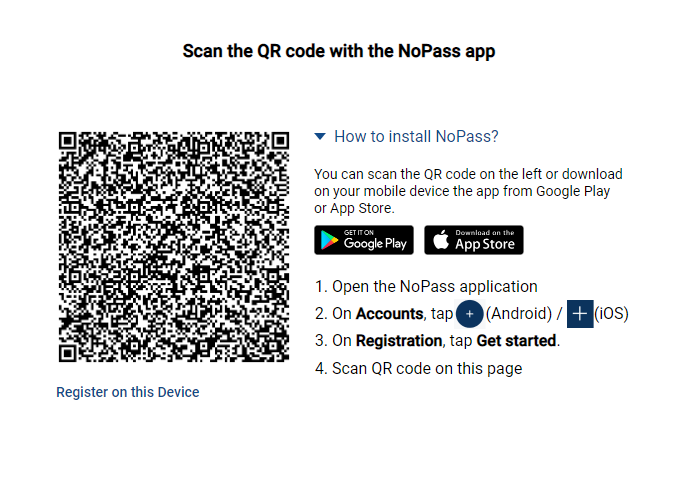
- Open the NoPass™ application on your mobile.
- On Accounts, tap the + sign.
- On Registration, tap Get started.
- Scan the QR code on the page in the browser.
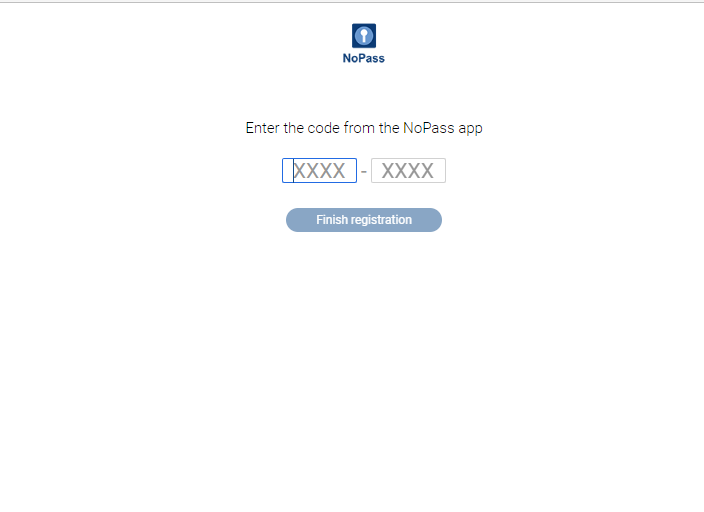
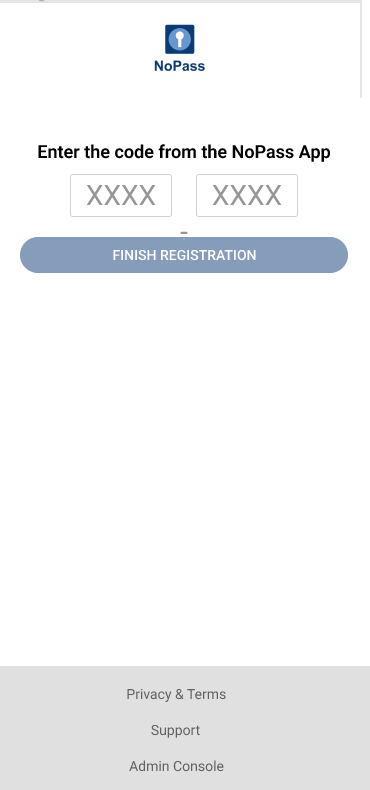
2) The NoPass™ mobile app receives the 8-digit code. Enter the code on the page in the browser and click or tap Finish registration.
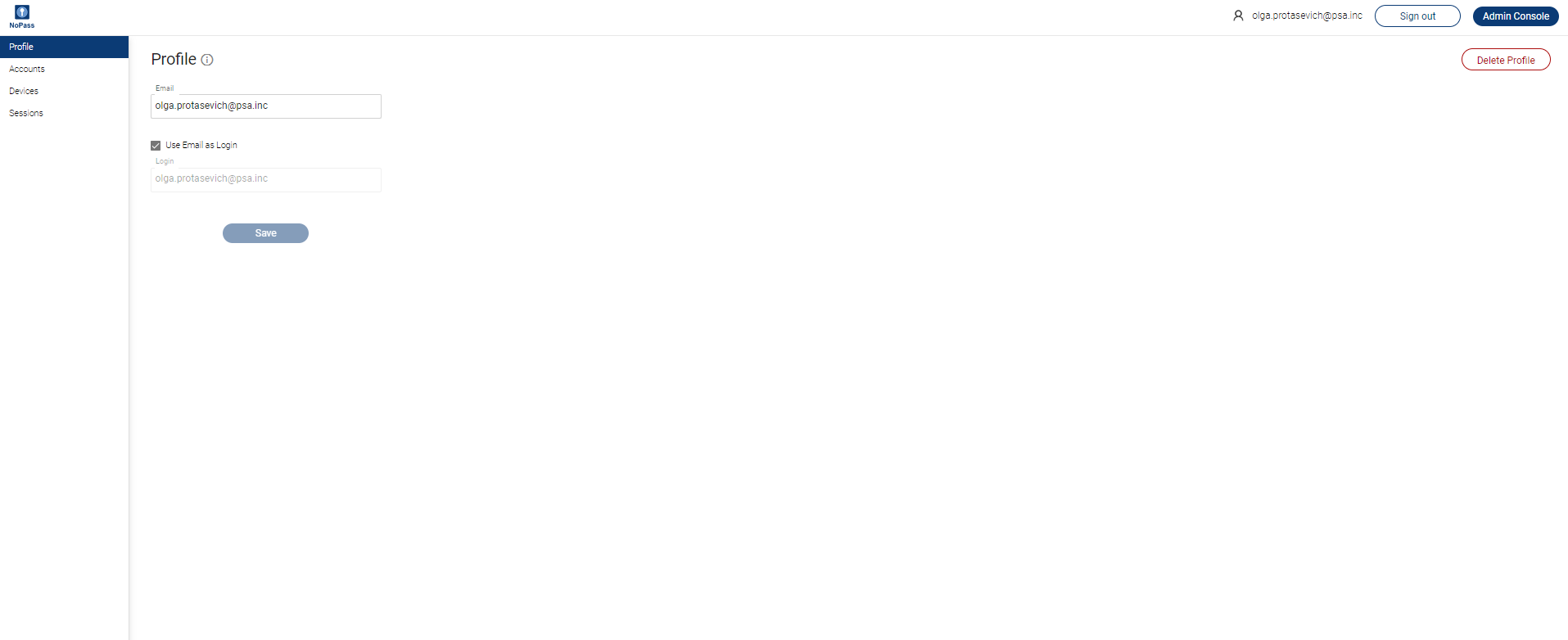
3) After you have successfully registered, you are redirected to your NoPass™ Profile page.
ii. On your mobile device, perform one of the following steps:
- Tap Continue to complete your registration.
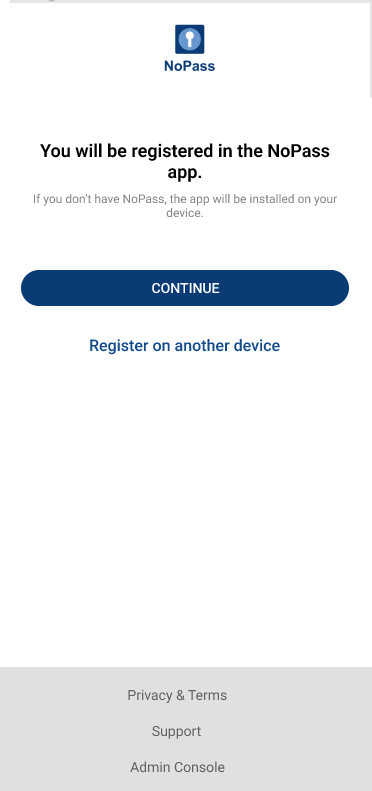
- Tap Register on another device to register the NoPass™ app on your other device.
- Scan the QR code with the NoPass™ app on your other device or tap the QR code on this device to register the NoPass™ app on this device.
- Enter the 8-digits code into your mobile device and tap Finish registration.
- Now you have registered to your NoPass™ app.
next topic: Subscriptions
previous topic: Sign in to your Profile