User authentication
The NoPass app allows the customers of the BigCommerce webstore to register and sign in to their accounts without passwords. In some cases, you can sign in without using your login (email address). For more details, see LoginFree user authentication.
This guide describes how you can sign in to your account created on the BigCommerce webstore with the help of the NoPass app.
Sign in on your PC
Sign in from the webstore homepage
Procedure
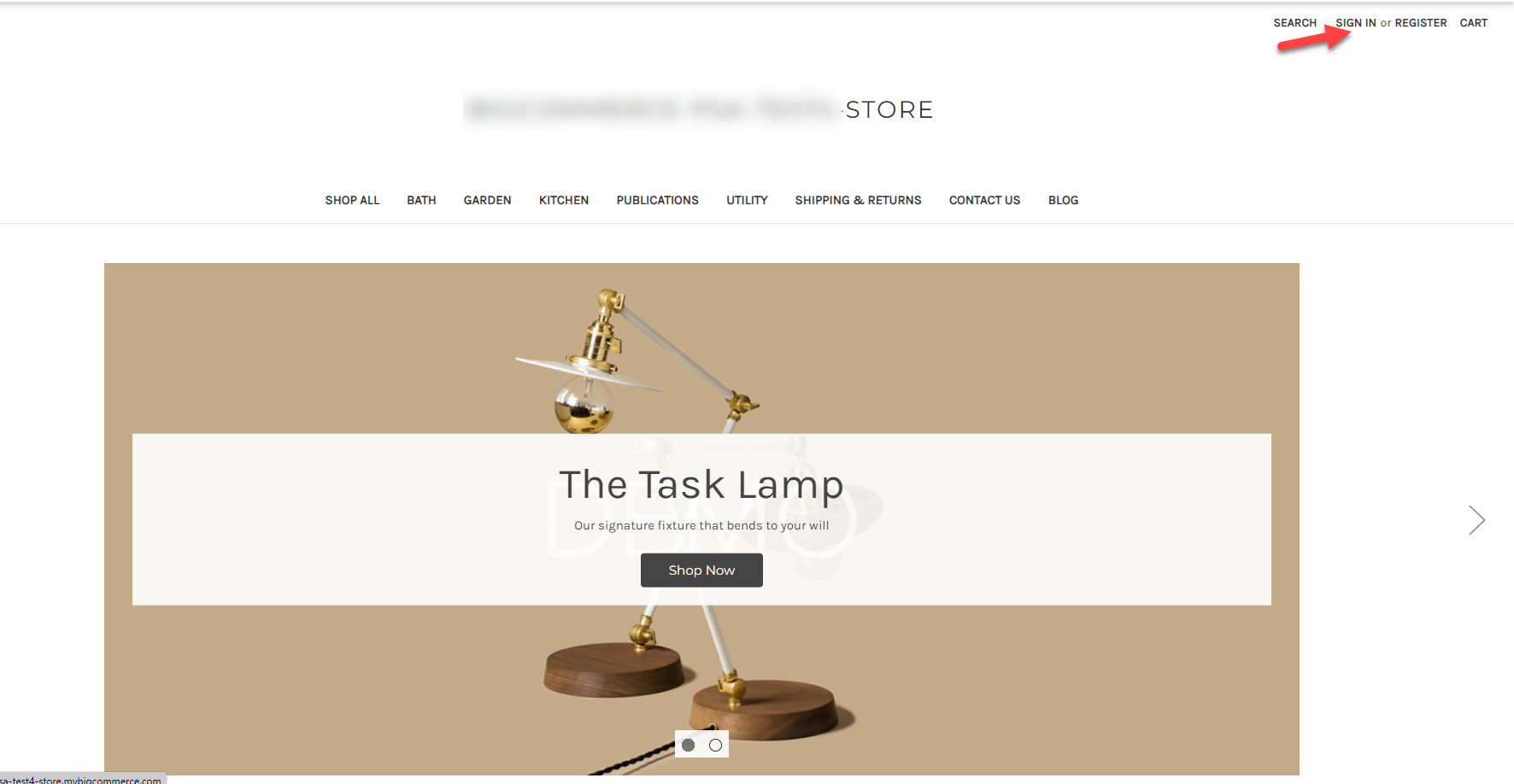
1. On the BigCommerce webstore home page, click Sign in.
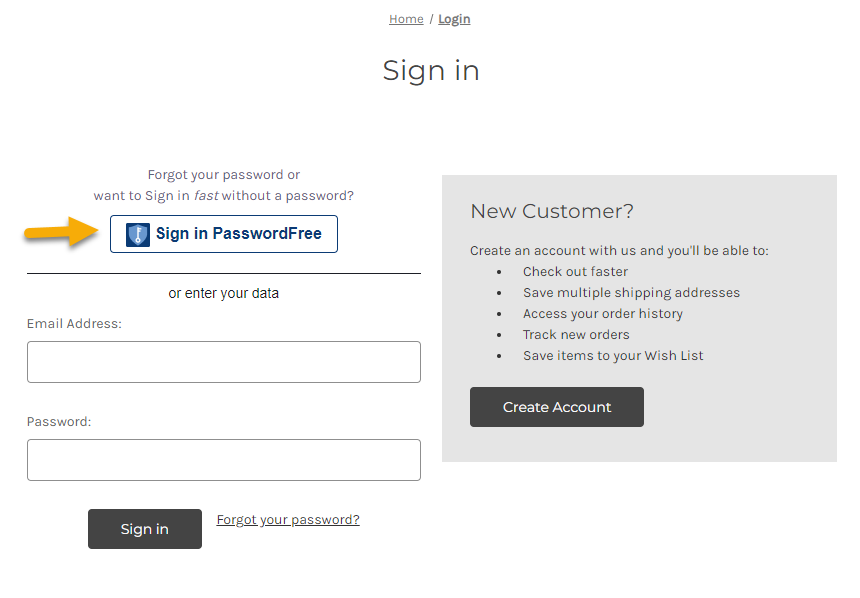
2. On the authentication page, click Sign in PasswordFree.
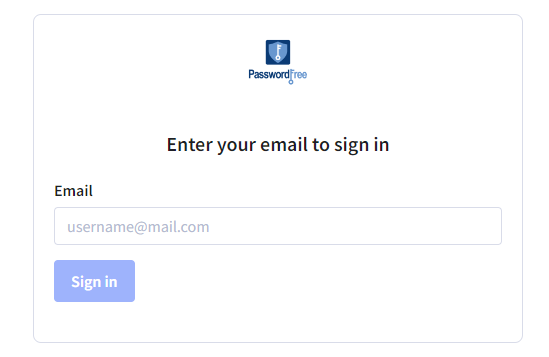
3. On the NoPass Sign in page, enter the email address that was used to create your BigCommerce webstore account and click Sign in.
Depending on what email address you have provided, the following options are available.
Option 1
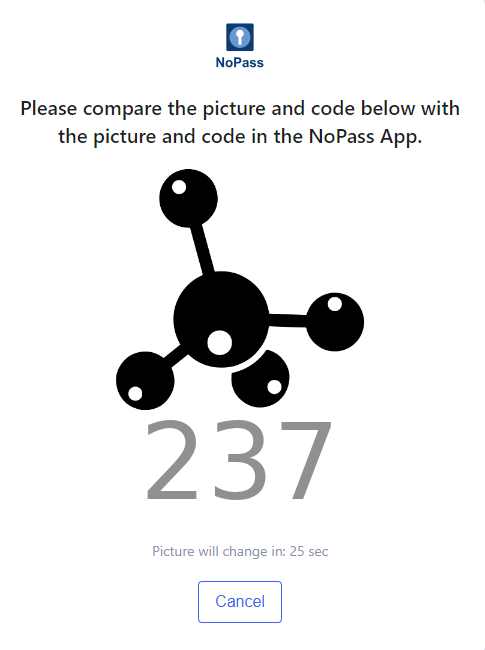
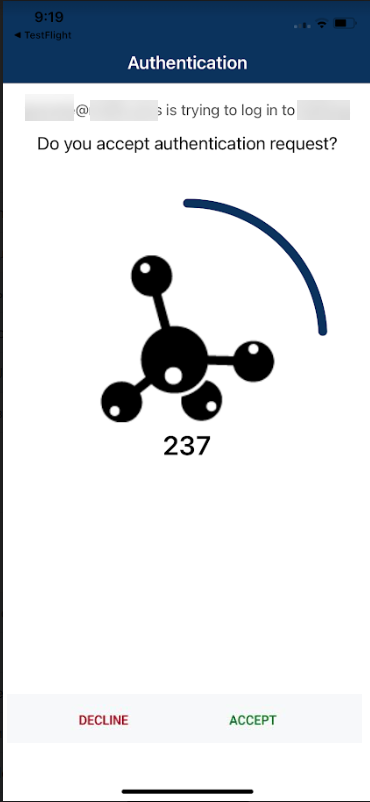
1) If the provided email address corresponds to the one used for BigCommerce webstore account creation and NoPass account creation, a random picture and a 3-digit code are displayed on your authentication page in the browser and in your NoPass mobile or desktop app.
Authentication page in your browser
NoPass mobile app
NoPass desktop app
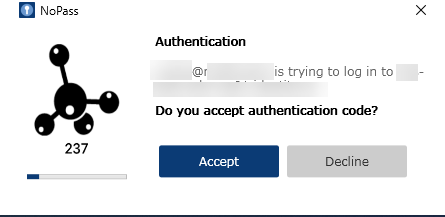
2) If the image and the code are identical in your browser and your mobile or desktop NoPass app, click Accept in your desktop app or tap Accept in your mobile app.
3) After your authentication process is completed, you are logged in to your BigCommerce webstore account and redirected to the Account page of your BigCommerce webstore.
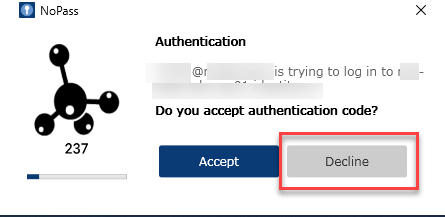
4) If the image or code in your browser and your mobile or desktop app is not identical, click Decline in your push notification in your NoPass desktop app or tap Decline in your NoPass mobile app.
Desktop app
Mobile app
5) Then, the Authentication canceled notification is displayed and you are redirected in your browser to the home page of your BigCommerce webstore.
6) In your other device, you are asked to provide the reason for declining by filling in a short survey.
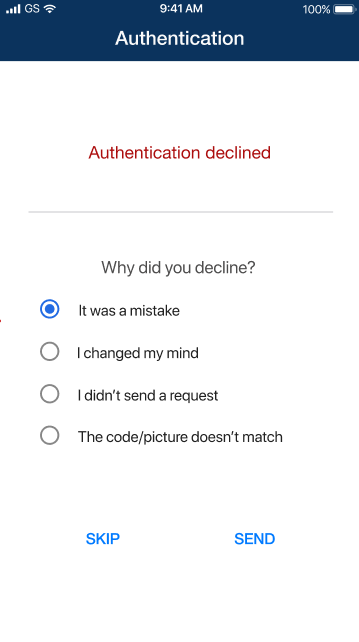
7) After you fill in the survey, click or tap SEND. Otherwise, click or tap SKIP.
8) If you don't want to proceed with your authentication, click Cancel in the browser.
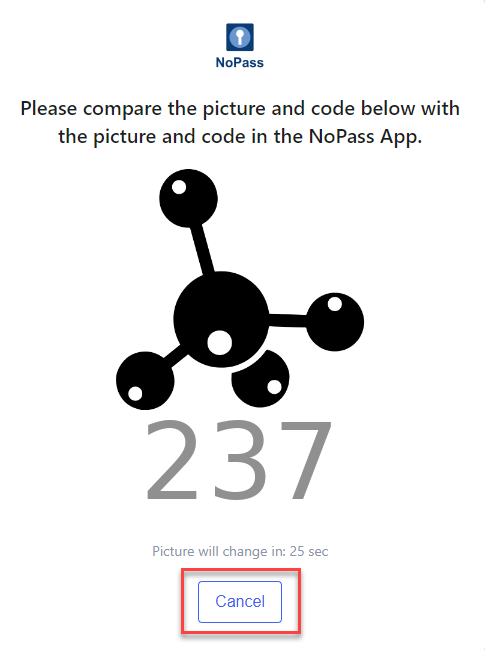
9) The Authentication canceled notification is displayed at the bottom of the page and you are redirected to the BigCommerce webstore home page.
Option 2
1) If the entered email address does not correspond to the one used for BigCommerce webstore account creation, the following notification is displayed:
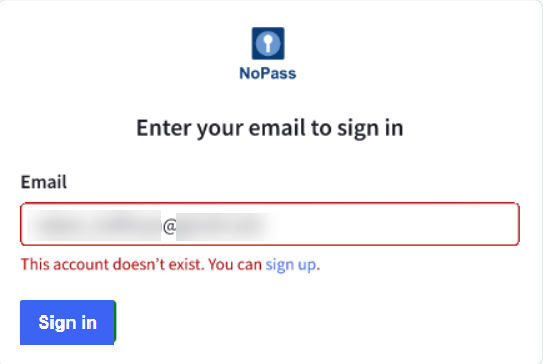
2) To create your account, click Sign up.
3) On the Sign up page, enter your valid email address instead of the one displayed and click Sign up.
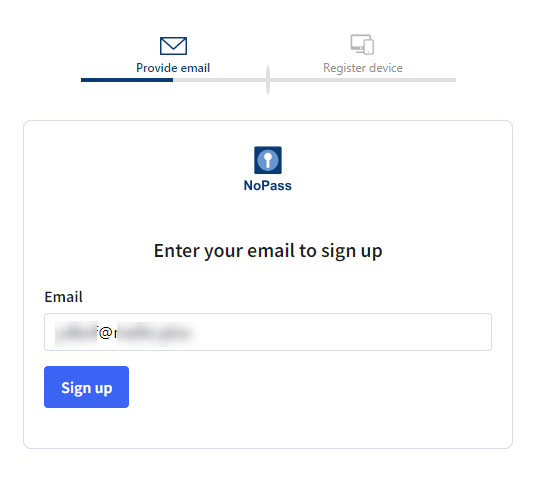
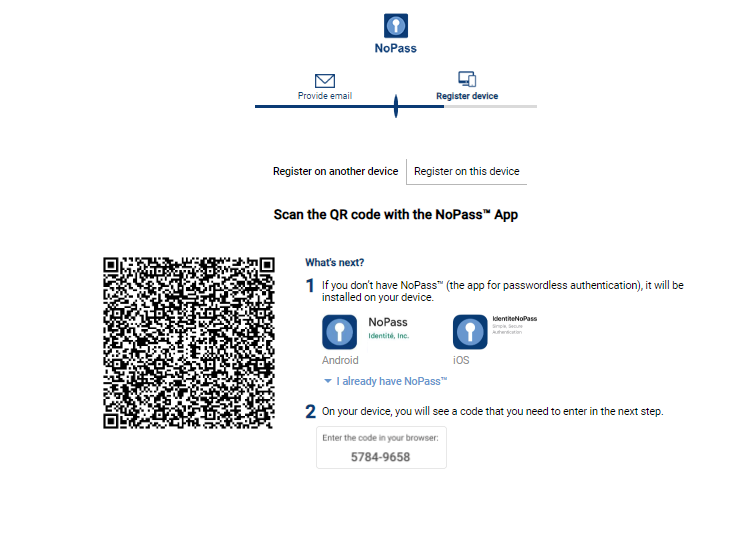
4) In the QR-code page, perform Option 1: the NoPass app is installed on your mobile device or Procedure 2: Install the NoPass desktop app on the same desktop computer from the User registration section.
Option 3
1) If you enter the email used for creating your account on the BigCommerce webstore, but not for PasswordFree™ account creation, the following notification is displayed:
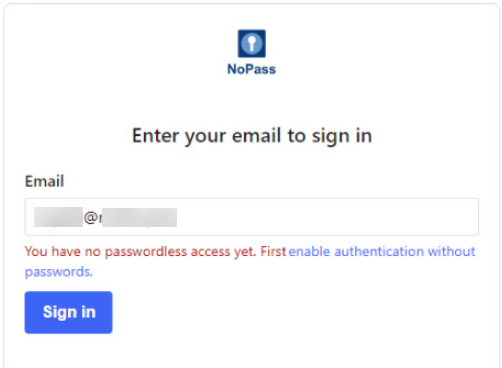
2) To create the NoPass account, click enable authentication without password.
3) On the following page, check the email address and enter the password from your BigCommerce webstore account, then, click Sign in.
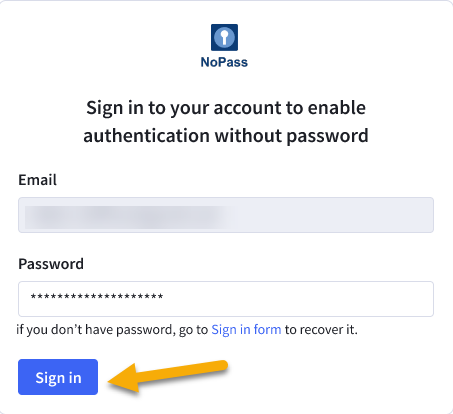
4) If the provided email address and password correspond to the credentials of your BigCommerce webstore account, the following page is displayed.
5) Perform Procedure 1: Install the NoPass mobile app on your smartphone or Procedure 2: Install the NoPass desktop app on the same desktop computer from the User registration section.
6) To recover your password, click Sign in form.
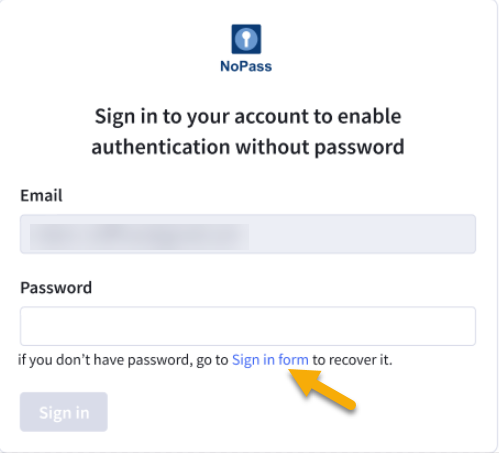
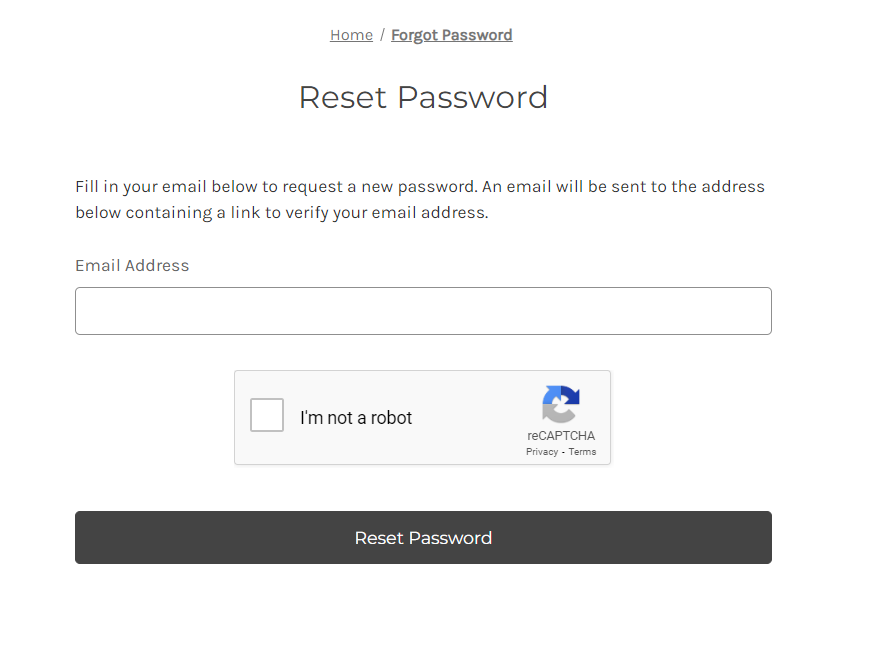
7) On the BigCommerce password recovery page, reset your password.
Sign in from the webstore checkout page
Generally, you need to sign in to your account for your purchases to be processed by the webstore. For your convenience, you can sign in from the webstore checkout page if you have already registered your account on the BigCommerce webstore with the NoPass app.
If you have not registered your account, but have added some purchases to your cart, you can still register from the webstore checkout page. For more details, see Register from the webstore checkout page.
Procedure
1. Select the goods from the webstore catalog and add them to your cart.
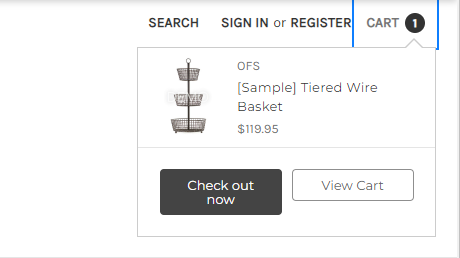
2. Click Check out now.
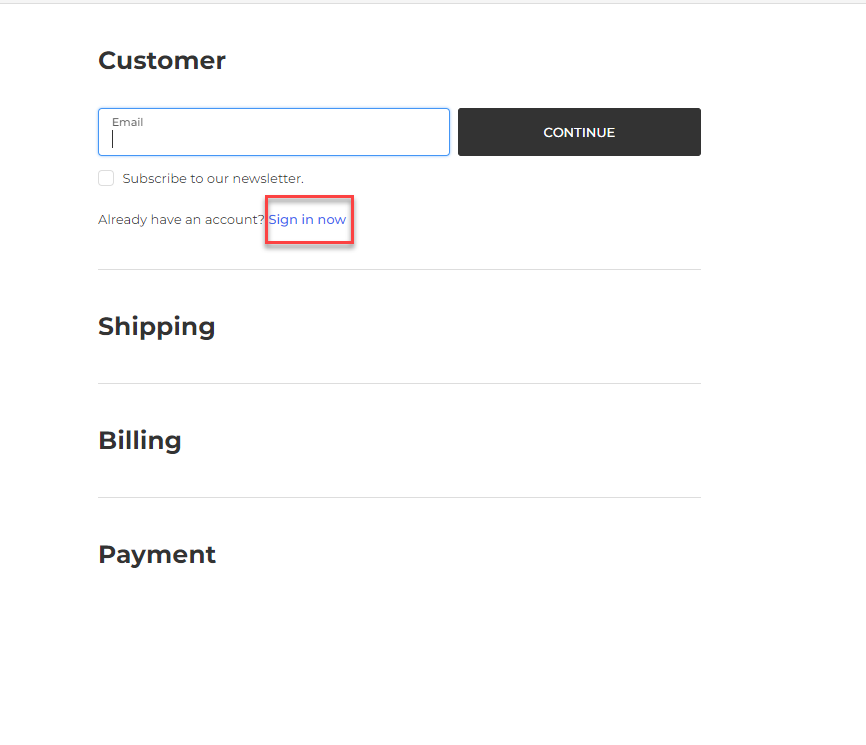
3. In the checkout form, click Sign in now.
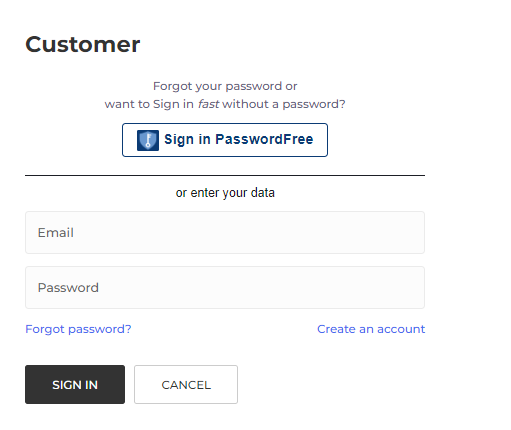
4. On the Sign in page, click Sign in PasswordFree.
5. Perform step 3 from the Sign in from the webstore homepage section above.
Sign in on your mobile device
You can also sign in to your account with the NoPass app when you open the BigCommerce store website in the browser on your mobile device.
Procedure
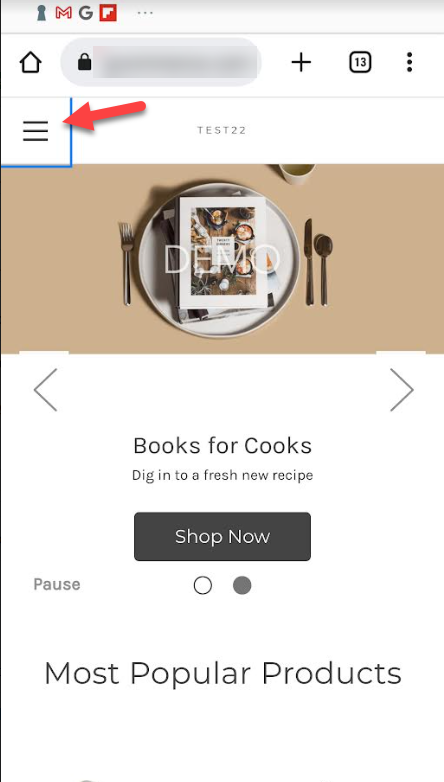
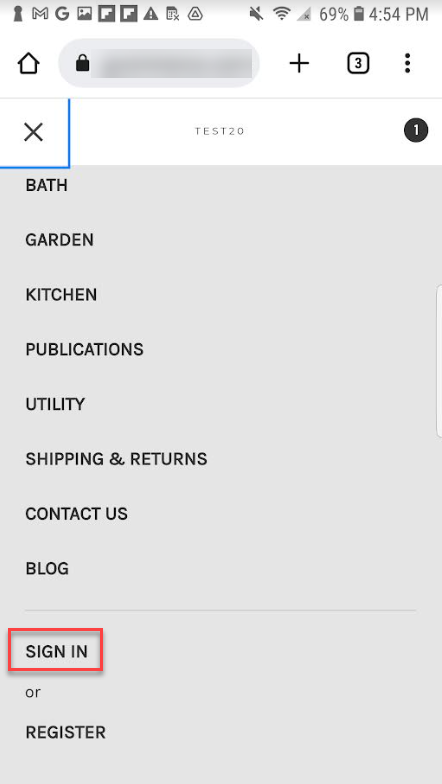
1. Open the browser on your mobile device and navigate to the BigCommerce webstore homepage.Tap the hamburger menu in the upper left corner of the page.
2. Select the Sign in button from the drop-down list.
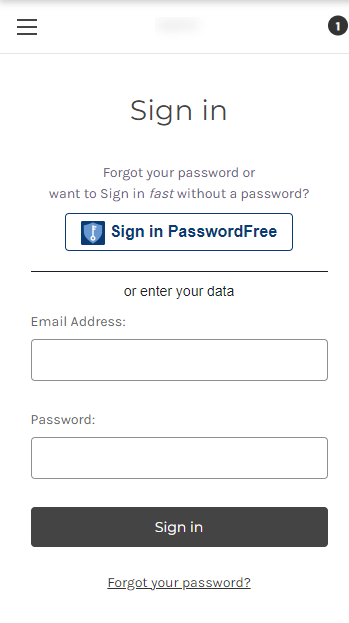
3. On the authentication screen, tap Sign in PasswordFree.
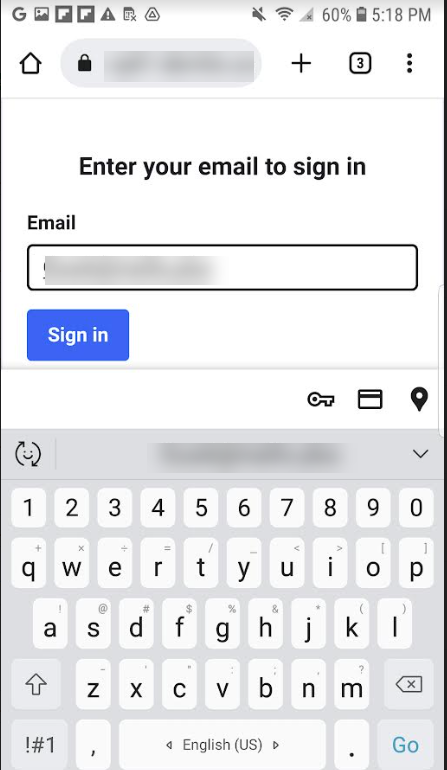
4. Enter the email address of the registered account and tap Sign in.
Depending on what email address you have provided, the following options are available.
Option 1
1) When the email address corresponds to the one used for BigCommerce webstore account creation and NoPass account creation, a randomly-generated image and number are displayed in the browser and in your NoPass app. In case the image and number are identical, tap Accept in the NoPass mobile app.
The browser in your mobile device
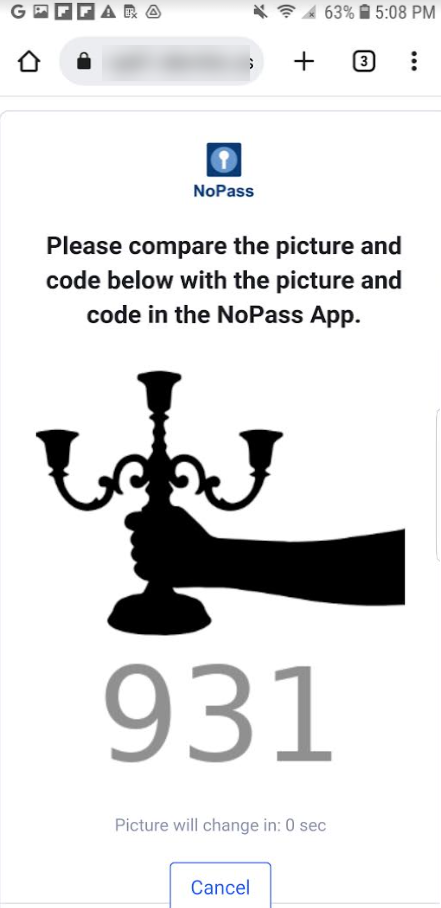
NoPass mobile app on your other device
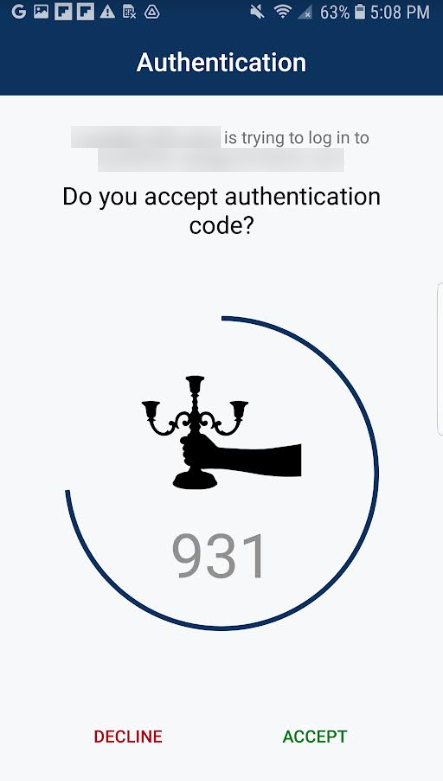
The browser and NoPass mobile app on one and the same device
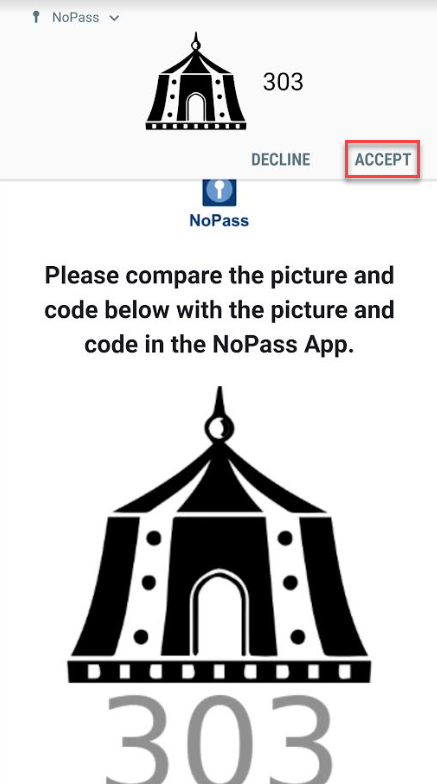
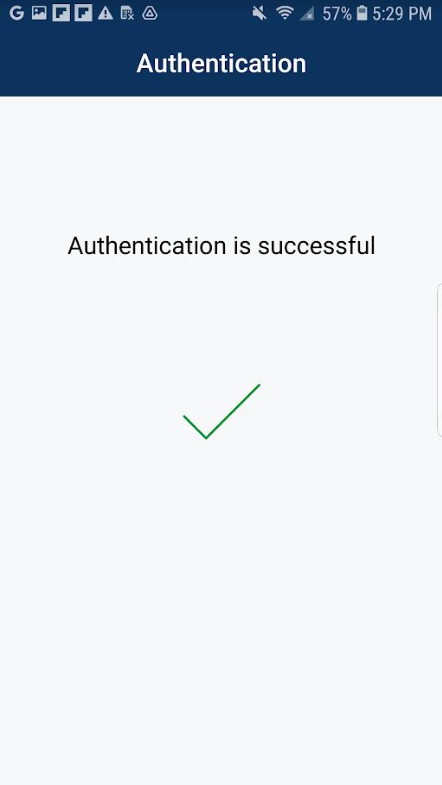
2) After you tap Accept, the following notification is displayed.
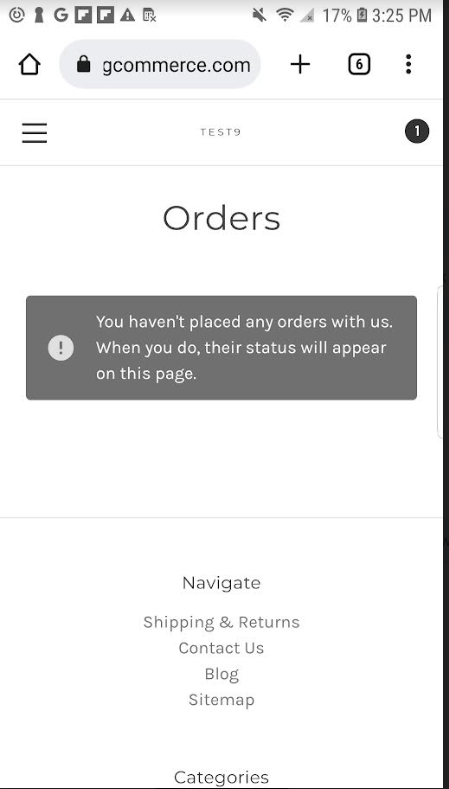
3) In the browser on your mobile device, you are signed in to your account on the BigCommerce webstore and redirected to the Orders screen.
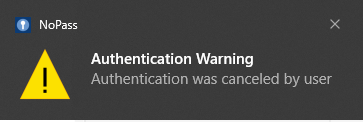
4) If you want to reject the authentication attempt, tap Cancel on the authentication push screen.
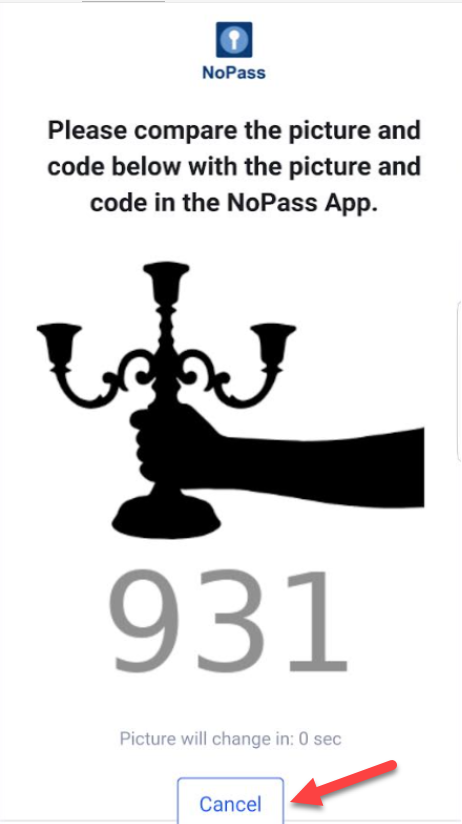
5) The following notification is displayed in your NoPass app.
6) If the image or code in your browser and your mobile or desktop app is not identical, tap Decline in your push notification.
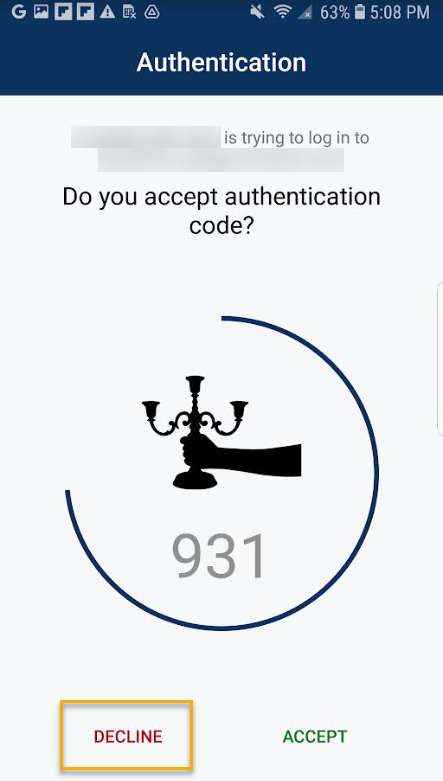
7) Then, the following notification is displayed.

8) In your other device, you are asked to provide the reason for declining by filling in a short survey.
9) After you fill in the survey, click or tap SEND. Otherwise, click or tap SKIP.
Option 2
1) If the entered email address does not correspond to the one used for BigCommerce webstore account creation, the following notification is displayed:
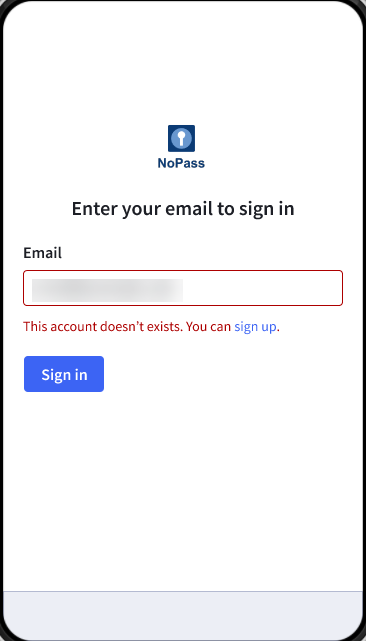
2) To create your account, click sign up.
3) On the Sign up page, enter your valid email address instead of the one displayed and click Sign up.
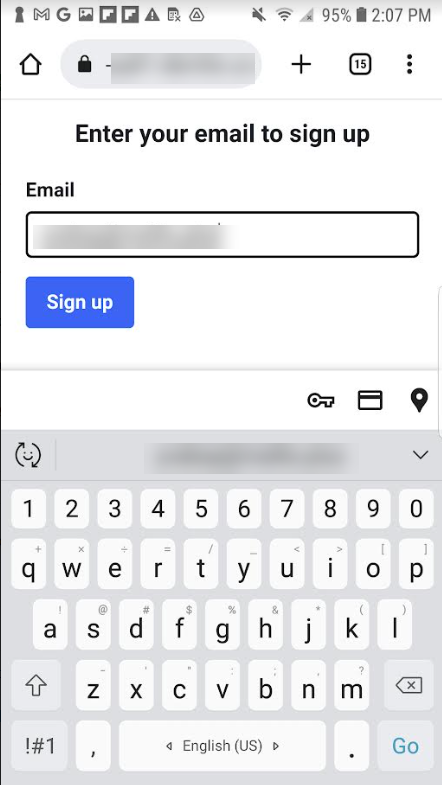
4) Perform steps from Option 1: the NoPass app is installed on your mobile device, Option 2: the NoPass app is not installed on your mobile device or Option 3: you want to continue registration on another device of the User registration section.
Option 3
1) If the entered email address does not correspond to the one used for NoPass account creation, the following notification is displayed:
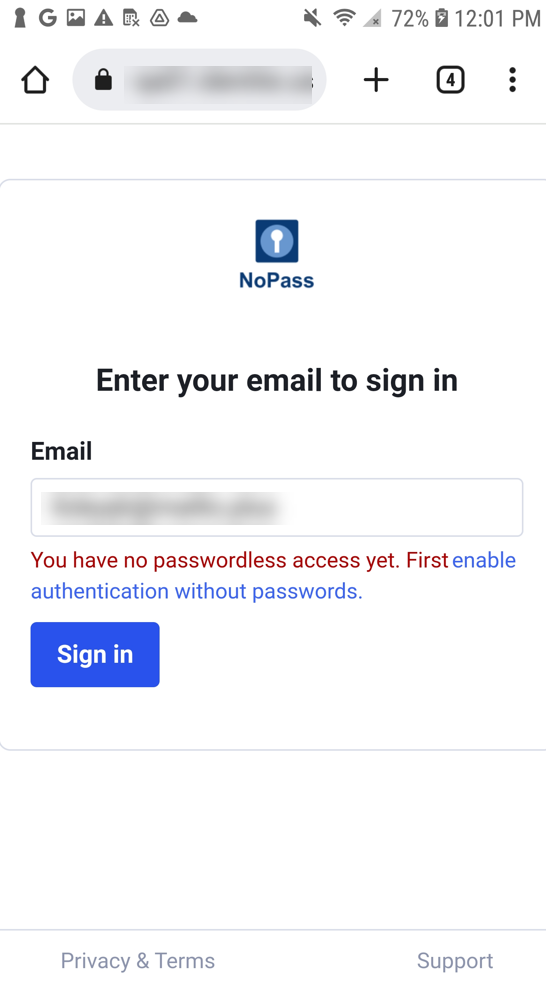
2) To create the NoPass account, tap enable authentication without password.
3) On the following page, check the email address and enter the password from your BigCommerce webstore account, then, tap Sign in.
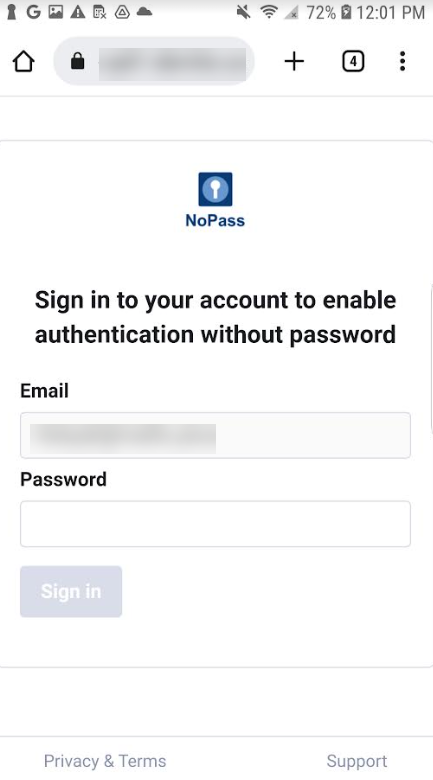
4) If the provided email address and password correspond to the credentials of your BigCommerce webstore account, the following page is displayed.
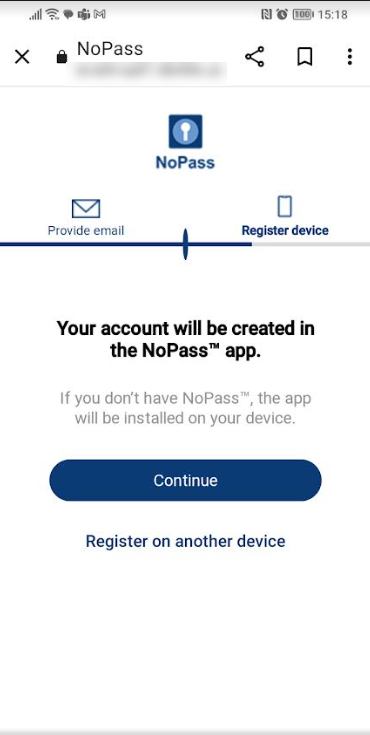
5) Perform steps from Option 1: the NoPass app is installed on your mobile device, Option 2: the NoPass app is not installed on your mobile device or Option 3: you want to continue registration on another device of the User registration section.