LoginFree user authentication
You can sign in to your account on the BigCommerce webstore without entering your email address only if the owner of this store has enabled this option for the customers. Otherwise, you can sign in with your email address as described in User authentication.
Sign in on your pc
Procedure
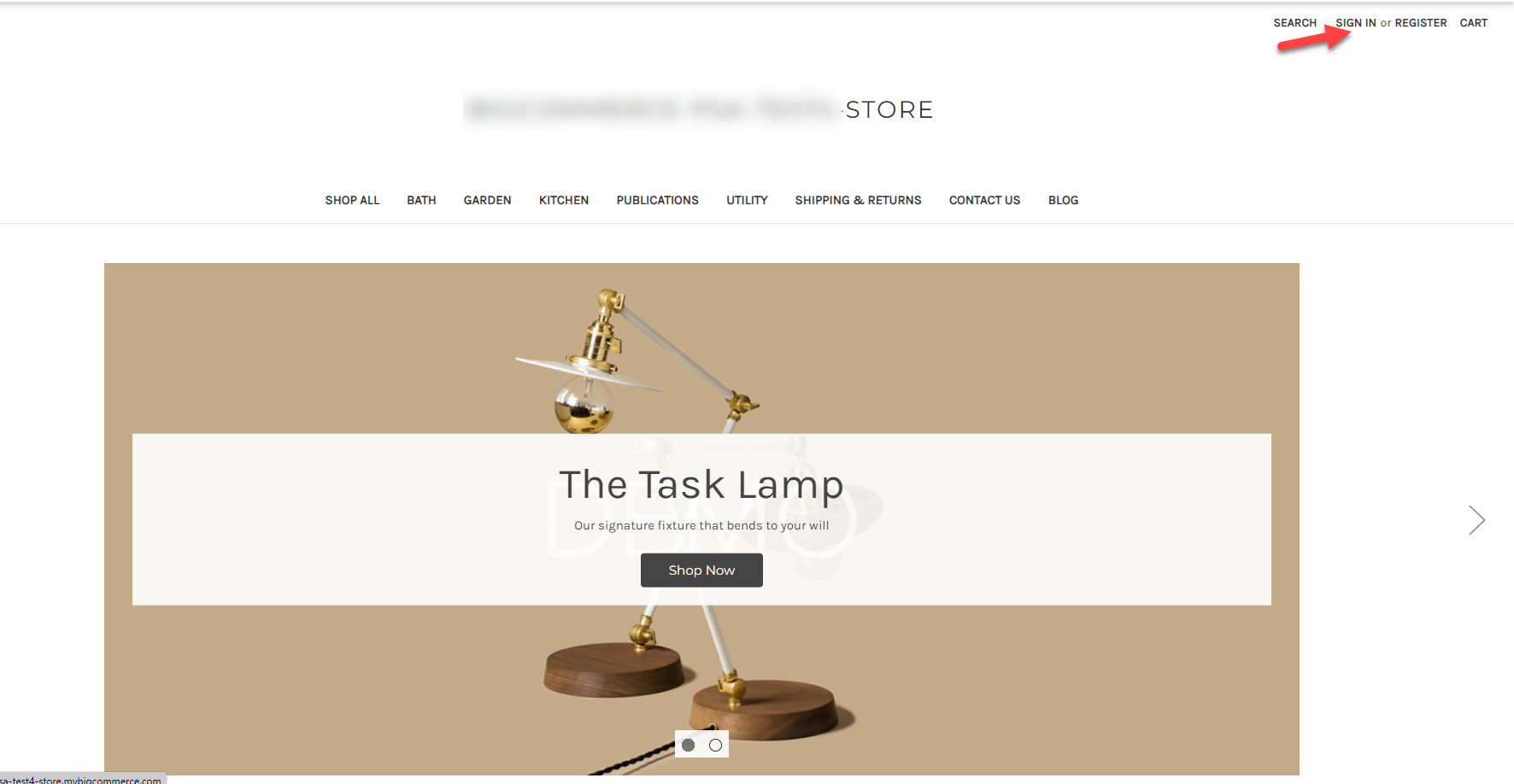
1. On the BigCommerce webstore home page, click Sign in.
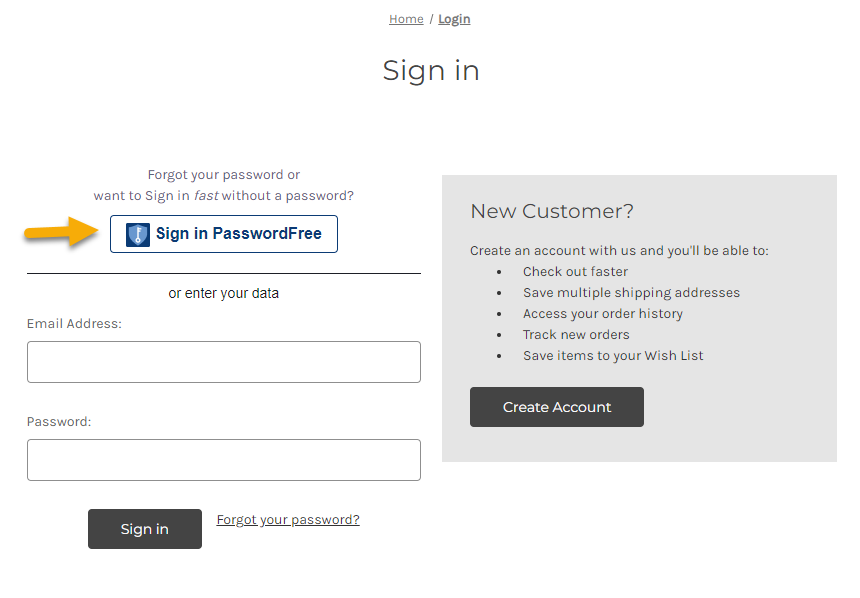
2. On the authentication page, click Sign in PasswordFree.
3. The following page is displayed.
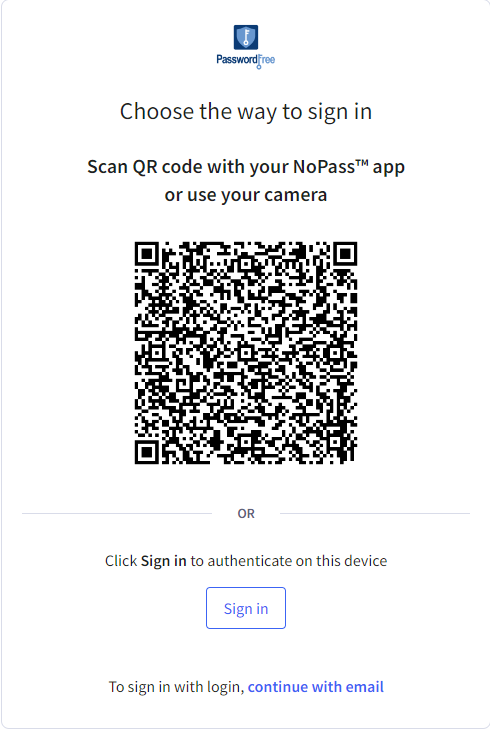
Depending on the availability of the NoPass™ app on your devices, you have the following options.
Option 1: Sign in with your NoPass™ mobile app
1) If you have the NoPass™ application installed on your mobile device, open it and perform one of the following procedures:
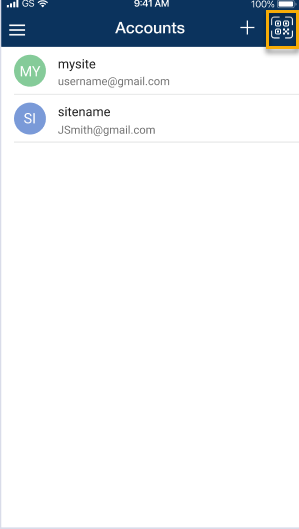
- On the Menu page, tap the scanner icon and scan the QR code with the app scanner.
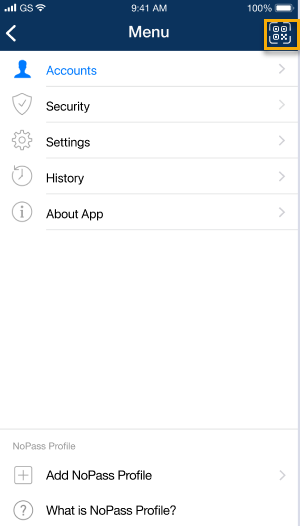
- You can also scan the QR code from the Accounts page.
a) With the + sign:
Tap the + sign to scan the QR code in the browser and follow the instructions in your mobile app.
for Android device for iOS device
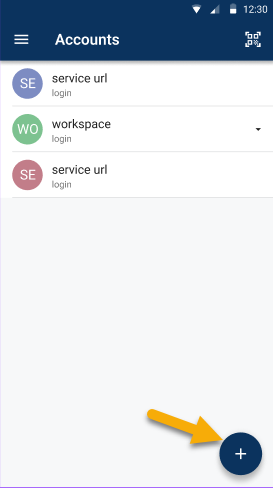
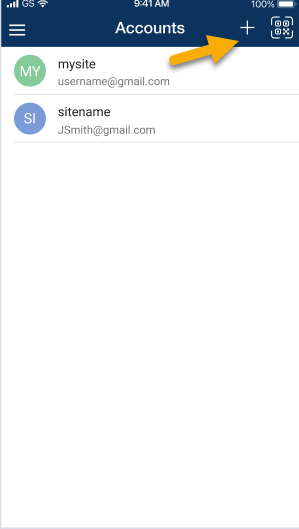
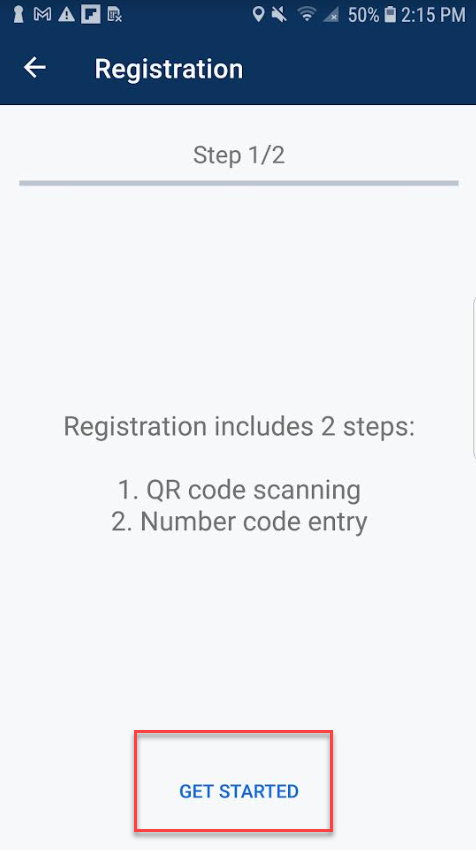
On the Registration screen, tap Get started and scan the QR code with the app scanner.
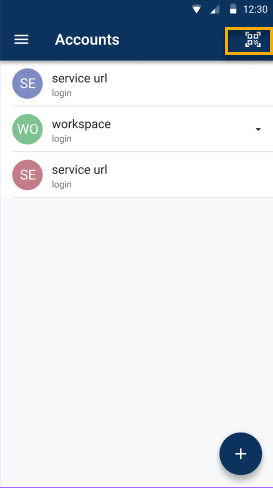
b) With the scanner icon:
Tap the scanner icon and scan the QR code with the app scanner.
for Android device for iOS device
2) Otherwise, use your mobile device camera to scan the QR code. If you have no NoPass™ app on your mobile device, you are redirected to the Google Play (on Android device) or App Store (on iOS device) where you can download the NoPass™ mobile app. For more details, see Downloading the NoPass™ mobile app.
3) If your mobile device requires another authentication factor (PIN code, graphic key, Face ID or fingerprint ID), provide it in your NoPass™ mobile app.
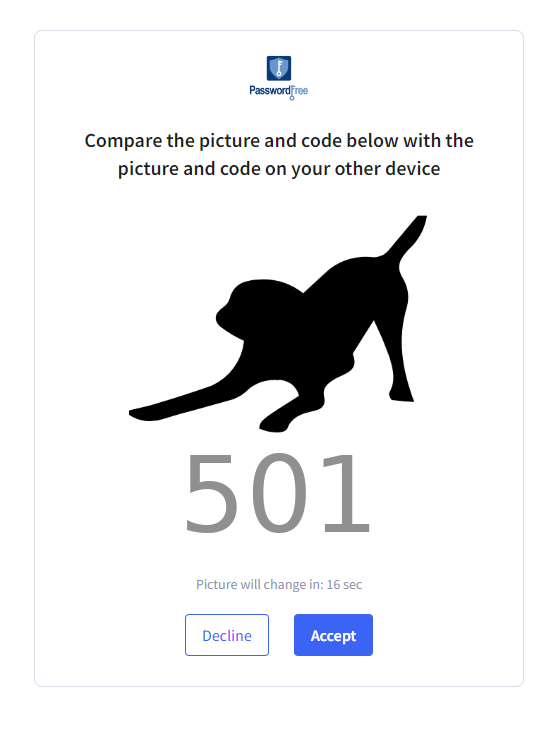
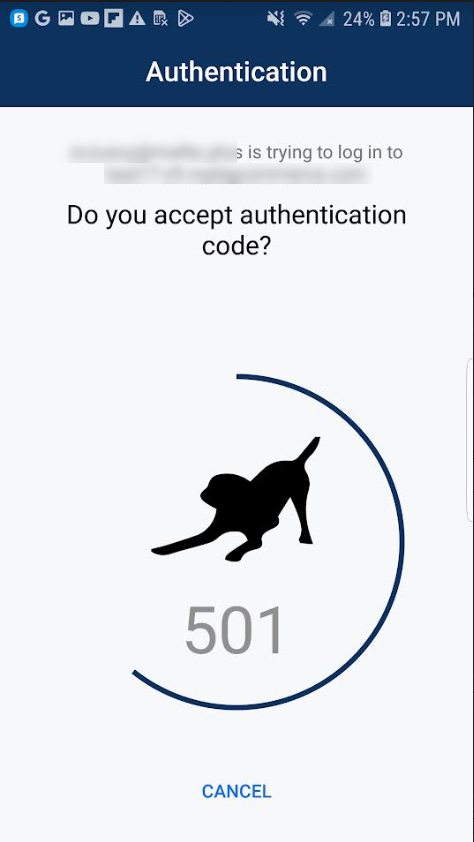
4) After the second authentication factor is accepted, a random picture and a 3-digit code are displayed on your authentication page in the browser and in your NoPass mobile app.
In the browser In mobile app
5) Perform one of the following actions:
- If the image and the code are identical in your browser and your mobile NoPass app, click Accept in your browser. You will sign in to your BigCommerce account.
- If you don't want to proceed with authentication, click Decline in your browser. The Authentication declined notification is displayed in your browser and you return back to the BigCommerce webstore home page.
- You you haven't initiated this authentication, tap Cancel in your mobile NoPass™ app. The Authentication canceled notification is displayed in your browser and you return back to the BigCommerce webstore home page.
6) After your authentication process is successfully completed, you are logged in to your BigCommerce webstore account and redirected to the Account page of your BigCommerce webstore.
7) If you have no PasswordFree™ account registered on this BigCommerce webstore with this mobile device, the following notification is displayed in your NoPass™ mobile app.
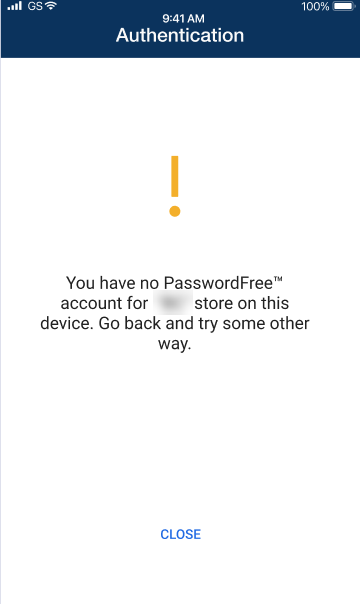
8) Tap Close and return to the QR-code page. Then, follow other procedures displayed on the QR-code page.
Option 2: Sign in with your NoPass™ desktop app
If you want to sign in to your BigCommerce webstore account without using a mobile device, perform the following steps.
1) Click Sign in in your browser.
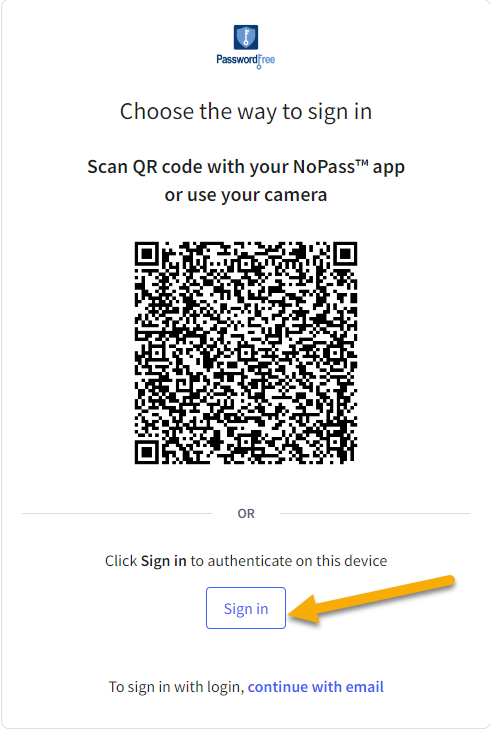
2) If your NoPass™ desktop app requires another authentication factor (PIN code, graphic key, etc.), provide it in your NoPass™ desktop app.
3) After your authentication process is successfully completed, you are logged in to your BigCommerce webstore account and redirected to the Account page of your BigCommerce webstore.
4) If you have no PasswordFree™ account registered on this BigCommerce webstore with this desktop app, the following notification is displayed in your NoPass™ desktop app.
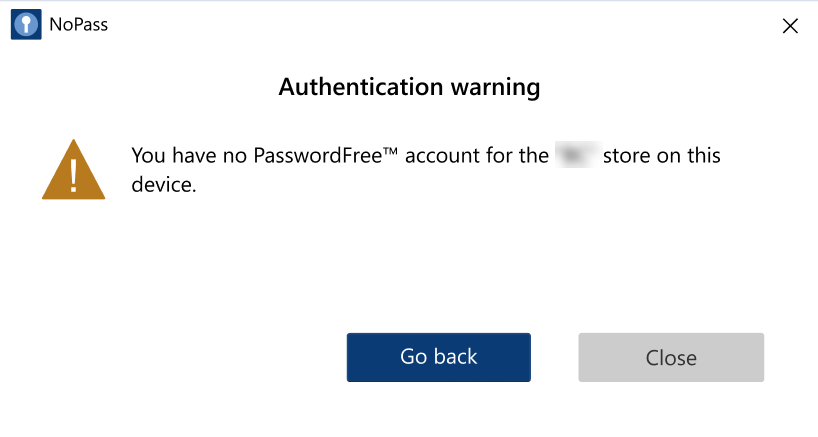
5) Click Go back to return to the QR-code page or click Close to close the notification in your desktop app.
sign in on your mobile device
Procedure
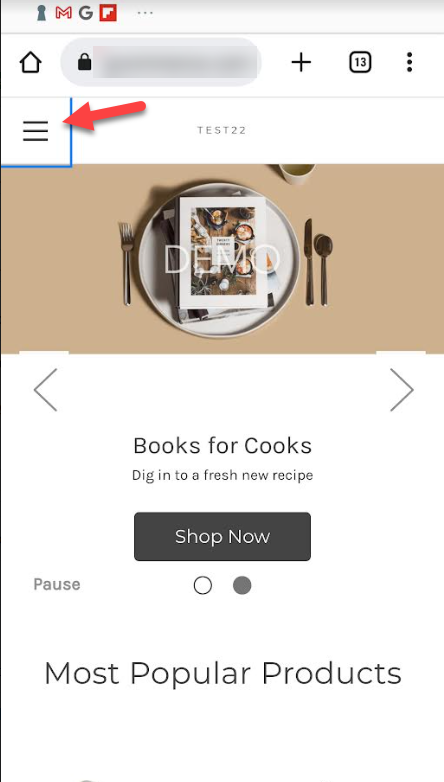
1. Open the browser on your mobile device and navigate to the BigCommerce webstore homepage.Tap the hamburger menu in the upper left corner of the page.
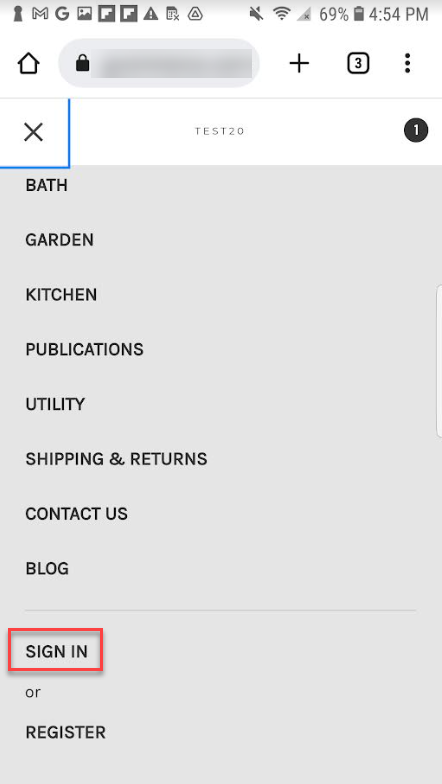
2. Select the Sign in button from the drop-down list.
3. On the authentication screen, tap Sign in PasswordFree.
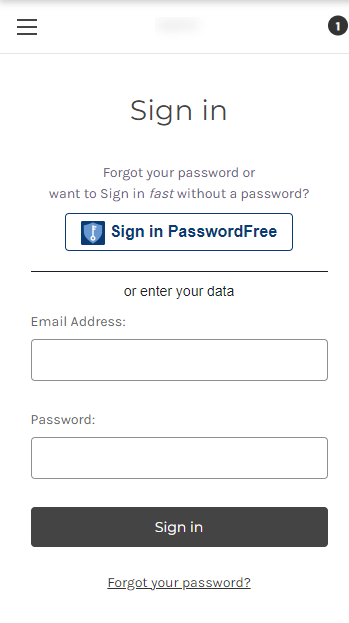
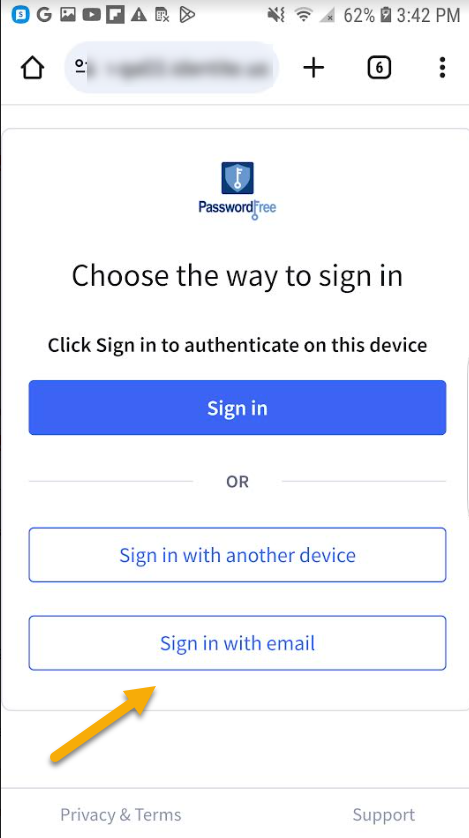
4. The following page is displayed in your mobile browser.
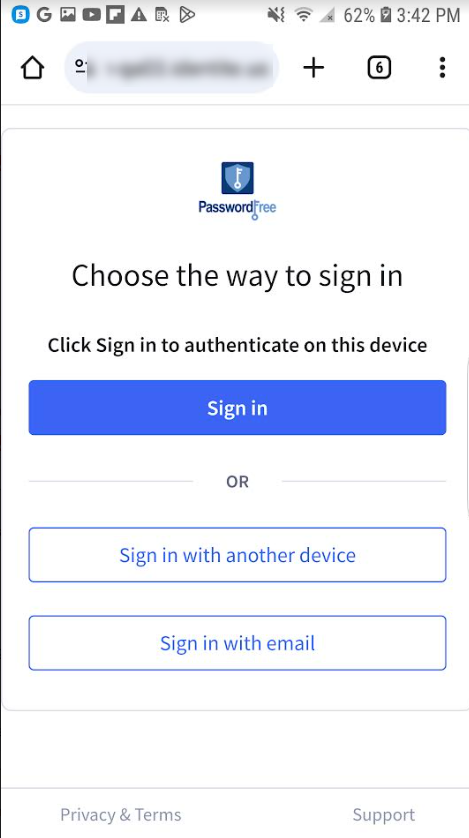
Option 1: sign in on the same mobile device
1) Tap Sign in.
2) If your mobile device requires another authentication factor (PIN code, graphic key, Face ID or fingerprint ID), provide it in your NoPass™ mobile app.
3) After the second authentication factor is accepted and if your account was registered on this device, your authentication procedure is successfully completed. In the browser on your mobile device, you are signed in to your account on the BigCommerce webstore and redirected to the Orders screen.
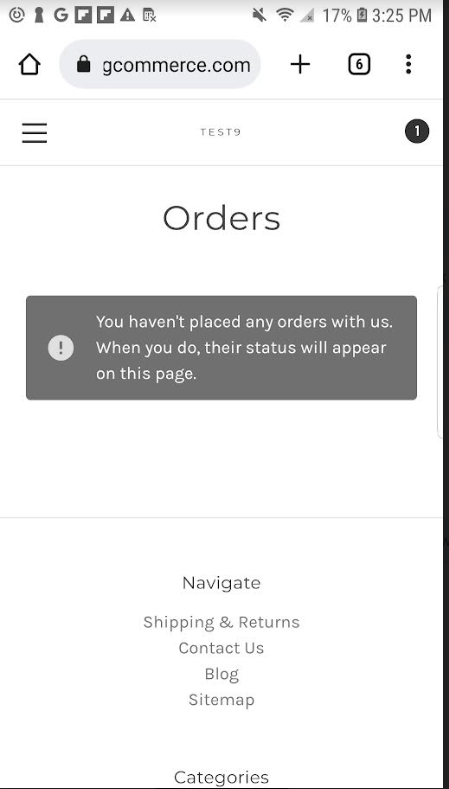
4) If you have no PasswordFree™ account registered on this BigCommerce webstore with this mobile device, the following notification is displayed in your NoPass™ mobile app.
8) Tap Close and return to the QR-code page. Then, follow other procedures displayed on the QR-code page.
Option 2: sign in with another mobile device
You can use this option when you have another mobile device with NoPass™ app installed on it.
1) Tap Sign in with another device.
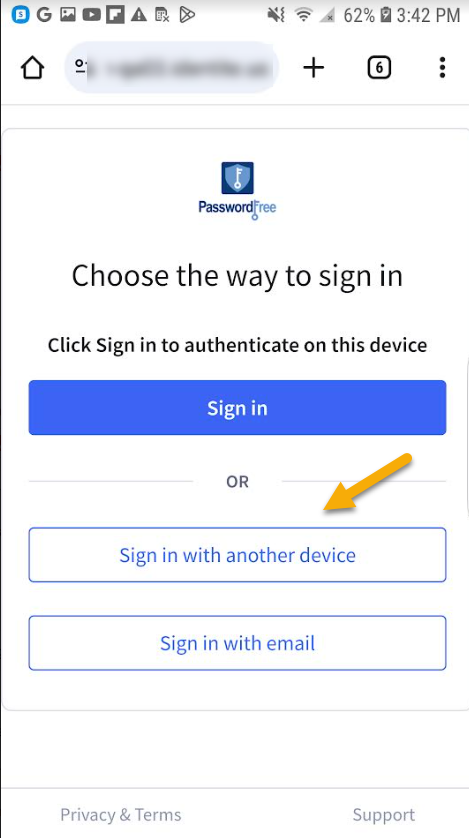
2) The QR-code page is displayed in your mobile browser.
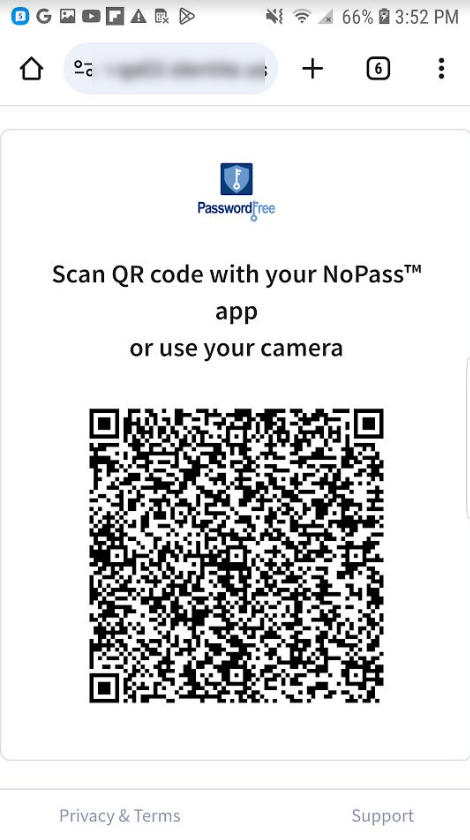
3) If you have the NoPass™ application installed on your mobile device, open it and perform one of the following procedures:
- On the Menu page, tap the scanner icon and scan the QR code with the app scanner.
- You can also scan the QR code from the Accounts page.
a) With the + sign:
Tap the + sign to scan the QR code in the browser and follow the instructions in your mobile app.
for Android device for iOS device
On the Registration screen, tap Get started and scan the QR code with the app scanner.
b) With the scanner icon:
Tap the scanner icon and scan the QR code with the app scanner.
for Android device for iOS device
4) Otherwise, use your mobile device camera to scan the QR code. If you have no NoPass™ app on your mobile device, you are redirected to the Google Play (on Android device) or App Store (on iOS device) where you can download the NoPass™ mobile app. For more details, see Downloading the NoPass™ mobile app.
5) If your other mobile device requires another authentication factor (PIN code, graphic key, Face ID or fingerprint ID), provide it in your NoPass™ mobile app.
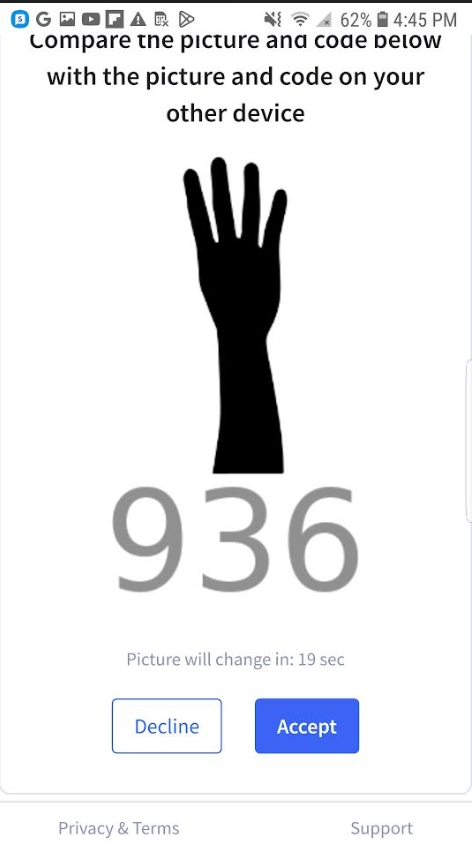
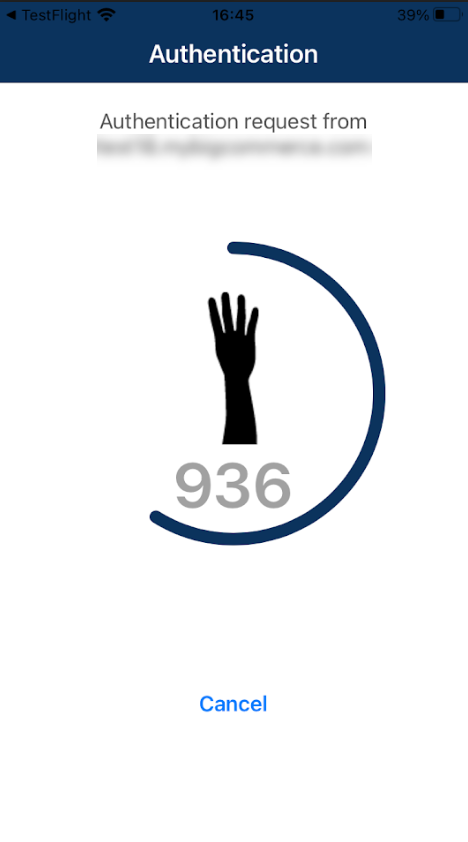
6) After the second authentication factor is accepted, a random picture and a 3-digit code are displayed on your authentication page in the browser (on your first mobile device) and in your NoPass mobile app (on your other mobile device).
In your browser In the Nopass mobile app
7) Perform one of the following actions:
- If the image and the code are identical in your browser and your mobile NoPass app, tap Accept in your browser. You will sign in to your BigCommerce account.
- If you don't want to proceed with authentication, tap Decline in your browser. The Authentication declined notification is displayed in your browser and you return back to the BigCommerce webstore home page.
- You you haven't initiated this authentication, tap Cancel in your mobile NoPass™ app. The Authentication canceled notification is displayed in your browser and you return back to the BigCommerce webstore home page.
8) After your authentication process is successfully completed, you are logged in to your BigCommerce webstore account and rredirected to the Orders screen.
9) If you have no PasswordFree™ account registered on this BigCommerce webstore with this mobile device, the following notification is displayed in your NoPass™ mobile app.
10) Tap Close and return to the QR-code page. Then, follow other procedures displayed on the QR-code page.
Sign in with login
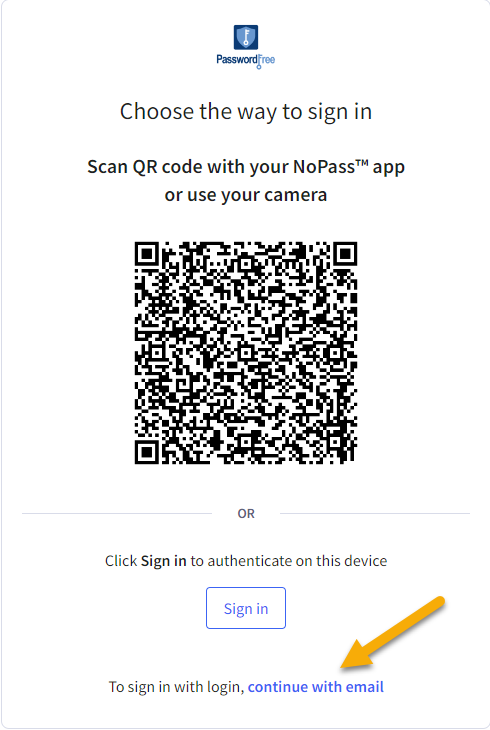
1. If you want to follow the standard authentication method, perform one of the following actions:
- click continue with email on the QR-code page in the browser
- tap Sign in with email on your mobile device.
The QR-code page on your PC The QR-code page on your mobile device
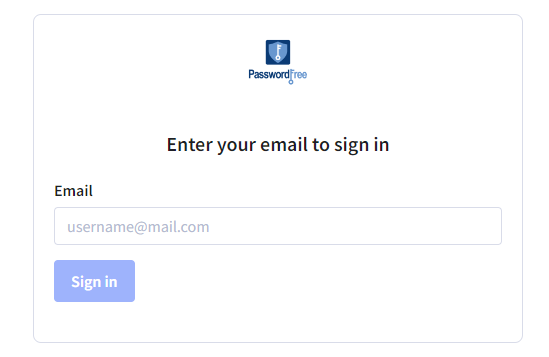
2. On the NoPass Sign in page, enter the email address that was used to create your BigCommerce webstore account and click Sign in.
3. Then, follow the procedure from Option 1 of the User authentication section.