Services
Services are portals where the NoPass™ system shall be used. Services are created within the Workspace and operate independently. To manage Services, Sign in to Admin Console.
To get more information on Companies, go to Company management.
To get more information on Workspaces, go to Work with Workspaces
Create a service
When your Company is successfully created, you can add Services to your Workspace. To add the first Service, you shall have to make your first API request.
Procedure
1. In your Admin Console, navigate to Services.
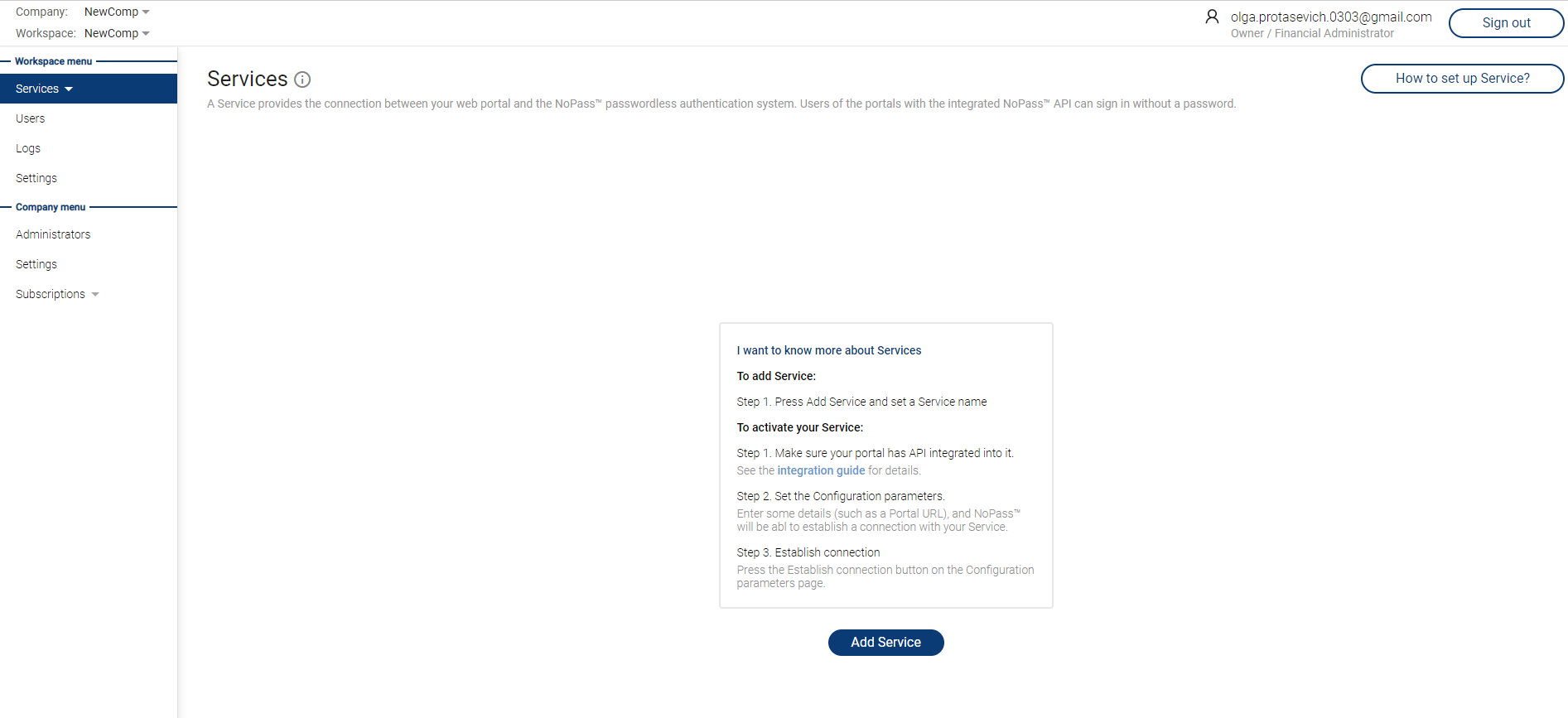
2. Click Add service. The following window shall be displayed:
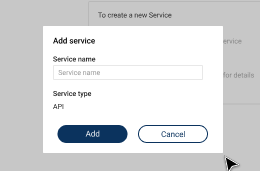
3. Fill in the Service name box with the name of the portal where the NoPass™ system shall be used and click Add. A new Service is displayed in your Services menu with the status Not Active.
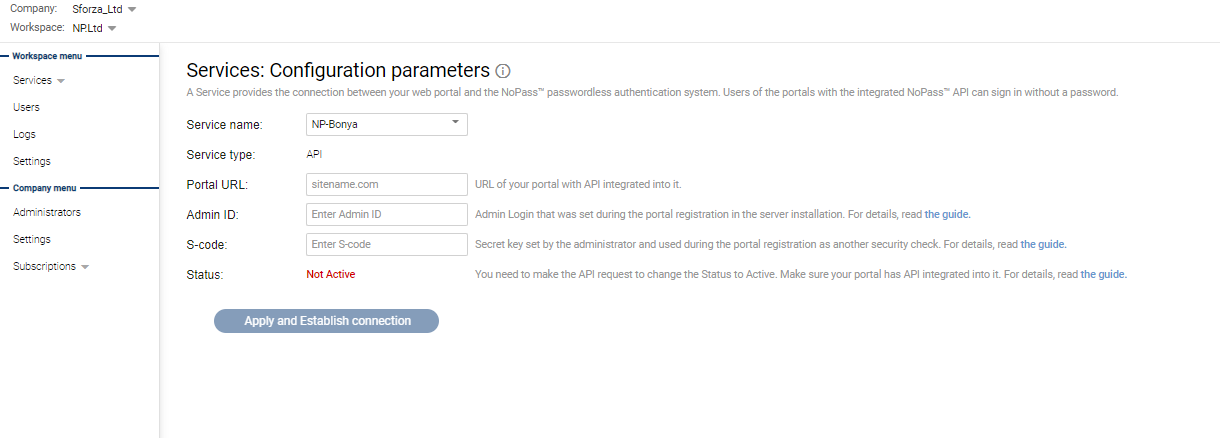
4. To make your first API request, click Configuration parameters.

5. Fill in the boxes and click Apply and establish connection. The Service you created changes its status from Not Active to In Progress.
Web URL is the URL of your portal with API integrated into it.
Admin ID is the adminId (Admin Login) set during the server installation's portal registration.
S-code is the sCode used by the NoPass™ system to validate the service. It is a secret key set by the administrator and used during portal registration as another security check.
More information on the S-code and Admin ID can be found at NoPass™ API Integration.
6. After the Preregistration and Registration requests are successfully fulfilled (see and for more details), the Service changes its status to Active. Now your Service is added to your Workspace.
edit a service
Procedure
1. In your Services tab, select the Service you want to edit and click  > Edit. The following dialogue box shall be displayed:
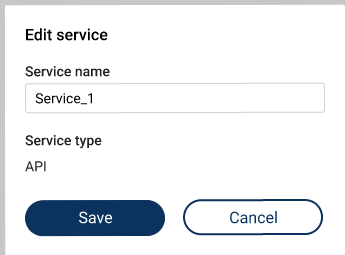
2. Edit the Service name box and click Save.
delete a service
Procedure
1. In your Services tab, select the Service you want to delete and click > Delete. The following dialogue box shall be displayed:

2. After you click Delete, a push notification is sent to your NoPass™ mobile and desktop app.
Mobile app notification Desktop app notification
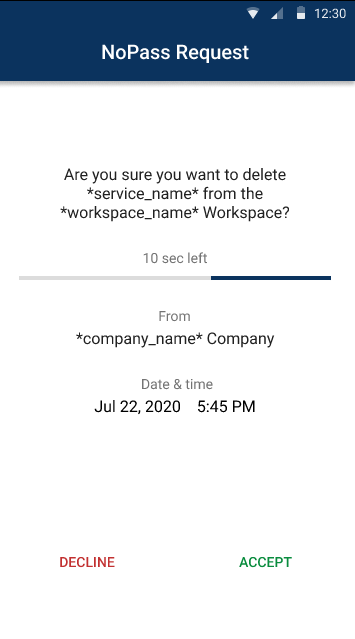
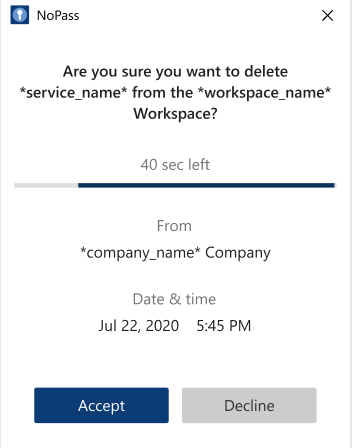
3. If you click Accept, the Service shall be deleted from your Workspace.
settings
Procedure
1. In your Services tab, select the Service you want to manage and click > Settings.
2. Then, you are redirected to the Configuration parameters page.
users
Procedure
1. In your Services tab, select the Service you want to manage and click > Users.
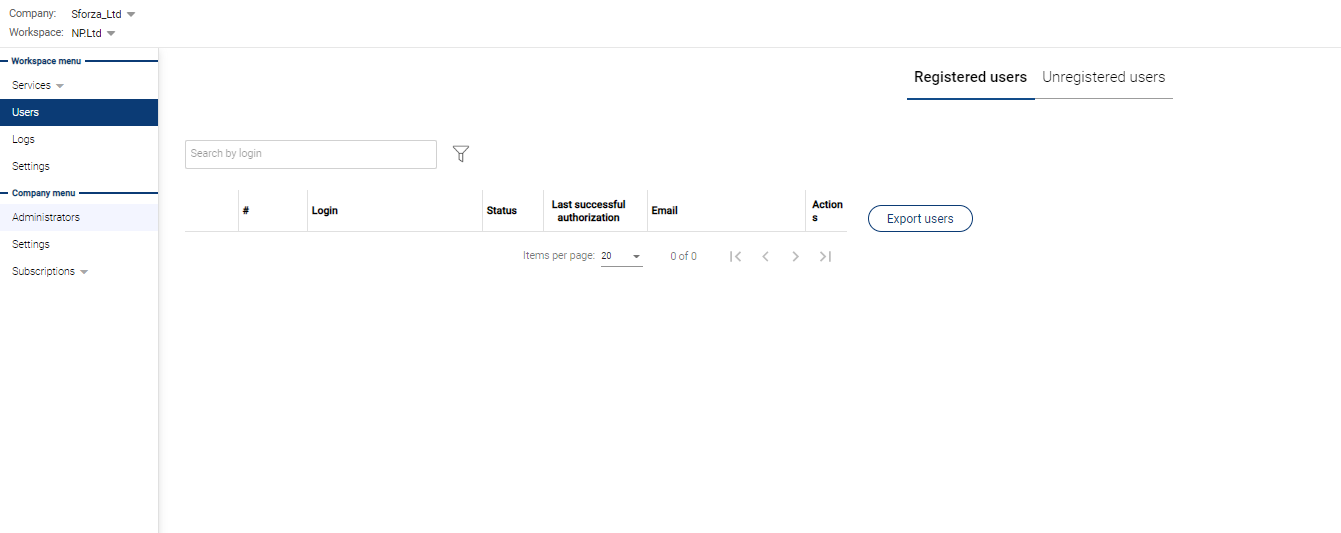
2. Then, you are redirected to the Users page.
next topic: Admin Tutorial
previous topic: Work with Workspaces