Getting started
This manual provides a detailed overview of the installation of the NoPass™ application server for conducting passwordless authentication. You can find all the requirements needed for the successful installation and detailed systematic instruction on the commands and configuration you will need to run the program. This manual is designed to guide you in setting up the environment and successfully installing the NoPass™ application server.
deployment schemes
NoPass™ is a flexible product that can be deployed in a number of different manners:
Web Portal Integration Scheme
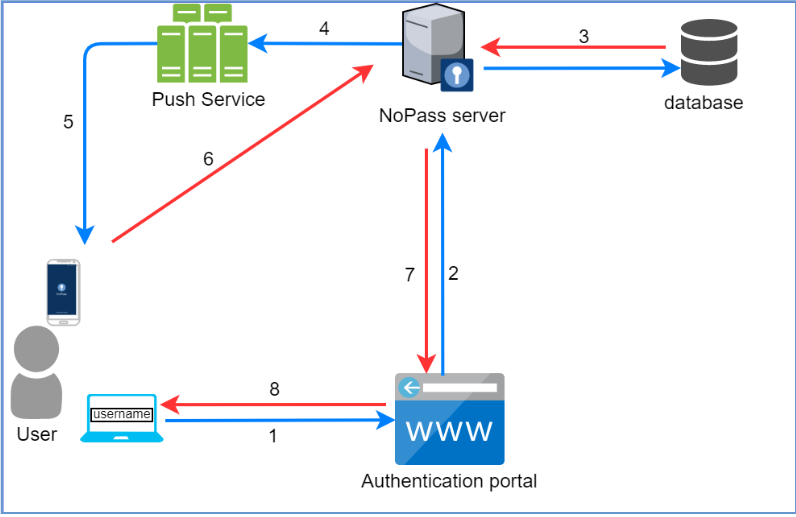
1. A user initiates authentication in the portal with the NoPass™ application.
2. The authentication portal sends an authentication request to the NoPass™ application server.
3. The NoPass™ server checks the user in the database.
4. After the response from the database is received, the server generates and sends a push request to the Push service.
5. The Push service receives the push request and sends a push notification to the user's device.
6. The NoPass™ mobile application in the user's device sends the authentication response to the NoPass™ application server.
7. The NoPass™ application server sends the authentication response to the authentication portal.
8. The access to the services of the authentication portal is either provided or not.
NoPass Employee MFA "RADIUS" schema
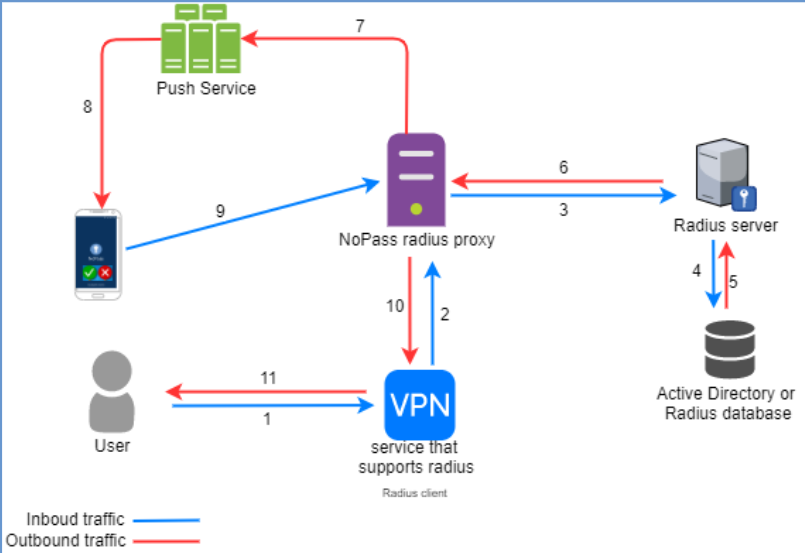
1. A user initiates the primary authentication to the application or service that supports RADIUS (RADIUS client).
2. The RADIUS client sends an authentication request to the NoPass™ RADIUS proxy server.
3. The NoPass™ RADIUS proxy server redirects the authentication request to the RADIUS server.
4. The RADIUS server verifies the user in the Active Directory or RADIUS database.
5. The verified authentication response is sent back to the RADIUS server.
6. The NoPass™ RADIUS proxy server receives the authentication response from the RADIUS server.
7. The NoPass™ RADIUS proxy server generates and sends a push request to the Push service.
8. The Push service receives the push request and sends a push notification to the user's device with NoPass™ application.
9. The NoPass™ application in the user's device sends the authentication response to the NoPass™ RADIUS proxy server.
10. The NoPass™ RADIUS proxy server sends the authentication response to the RADIUS client.
11. The access to the application or service in the RADIUS client is either provided to the user or not.
NoPass Employee SSO "SAML/OIDC" schema
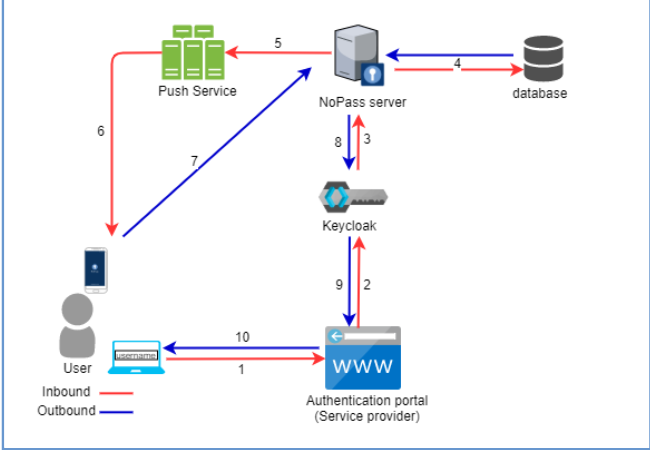
1. A user initiates the primary authentication to the application or service with SSO (Service provider).
2. The Service provider redirects the token containing the user information from the user's browser to Keycloak.
3. The keycloak verifies if the user has already been authenticated and sends a request to the NoPass™ server.
4. The NoPass™ server checks the user in the database.
5. The NoPass™ server generates and sends a push request to the Push service.
6. The Push service receives the push request and sends a push notification to the user's device with NoPass™ application.
7. The NoPass™ application in the user's device sends the authentication response to the NoPass™ server.
8. The NoPass™ server sends a token with a response message back to Keycloak.
9. The Keycloak receives the response message and either provides authentication or not.
10. The access to the Service provider is either granted to the user or not.
Desktop Unlock Integration Scheme
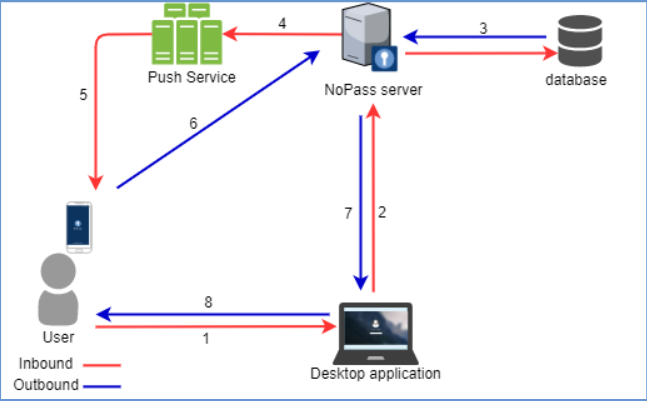
1. A user requests for the Desktop unlock service on their desktop Windows computer.
2. The NoPass™ desktop application sends an authentication request to the NoPass™ server.
3. The NoPass™ server checks the user in the database.
4. After the response from the database is received, the NoPass™ server generates and sends a push request to the Push service.
5. The Push service receives the push request and sends a push notification to the user's device with NoPass™ application.
6. The NoPass™ application in the user's device sends the authentication response to the NoPass™ server.
7. The NoPass™ application server sends the authentication response to the authentication portal.
8. The access to the Desktop unlock service is either granted or not.
next topic: Before you begin
previous topic: Overview: Server installation