Delegating Ownership
The Owner role is assigned to the Administrator that created the Company (see Administrator roles). A Company can have only one Owner, however, the existing Owner can delegate the Ownership to another Administrator.
delegating the owner role
Procedure
1. To delegate your Owner role, go to Administrators in the NoPass™ Admin Console.
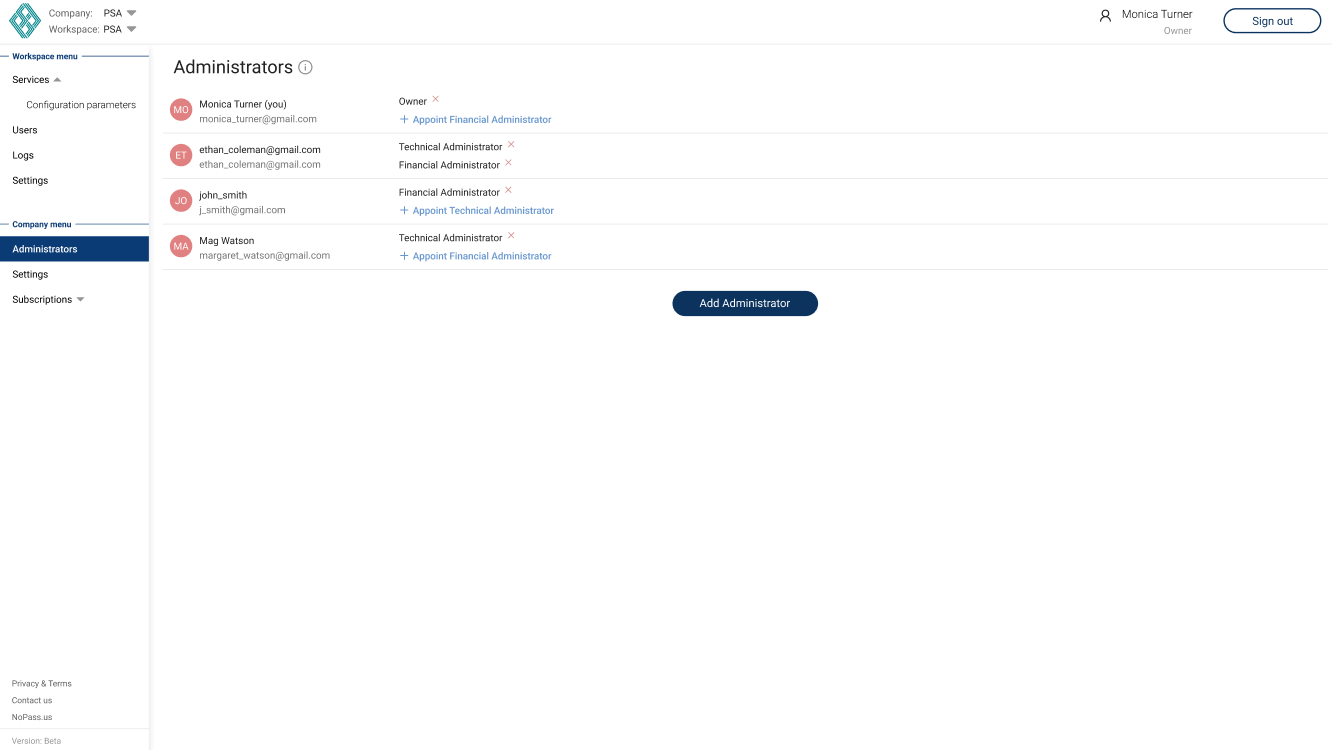
2. Next to the Owner role, click  Delete. The following dialogue box is displayed.
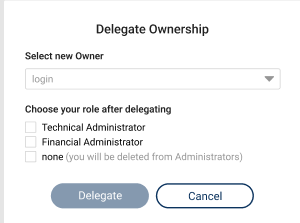
3. Select the Administrator from the drop-down list of logins or enter the login of the Administrator you want to delegate Ownership to.
4. Select the role you would like to retain after your Owner role is delegated.
- If you choose the Technical Administrator role, perform the following steps:
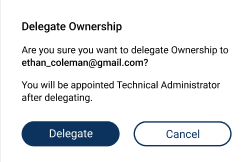
i. Click Delegate in the following dialogue box.
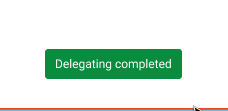
ii. After the Owner role is delegated, the following notification is displayed at the bottom of the page.
- If you choose the Financial Administrator role, perform the following steps:
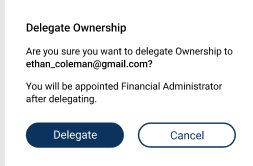
i. Click Delegate in the following dialogue box.
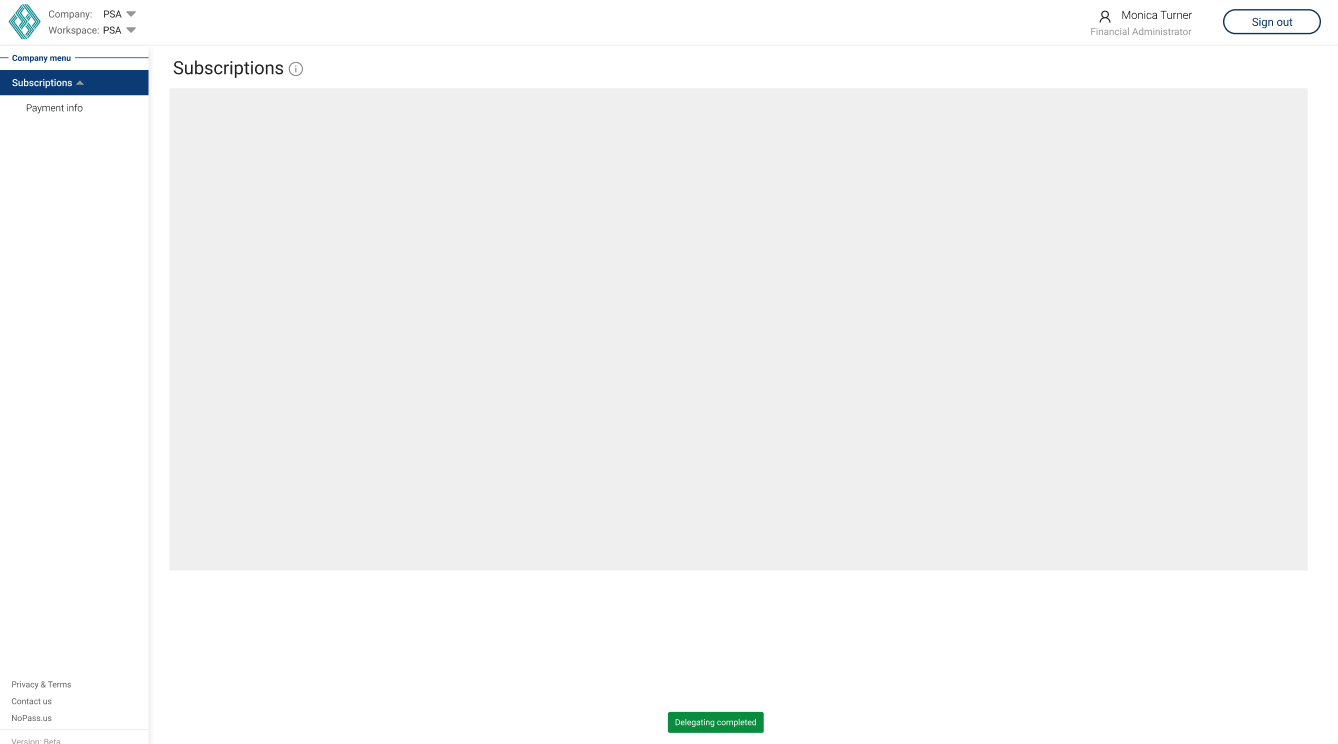
ii. After the Owner role is delegated, you are redirected to the Subscriptions page with the following notification displayed at the bottom of the page.
- If you select none, perform the following steps:
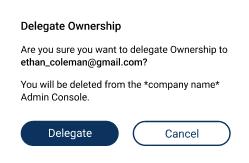
i. Click Delegate in the following dialogue box.
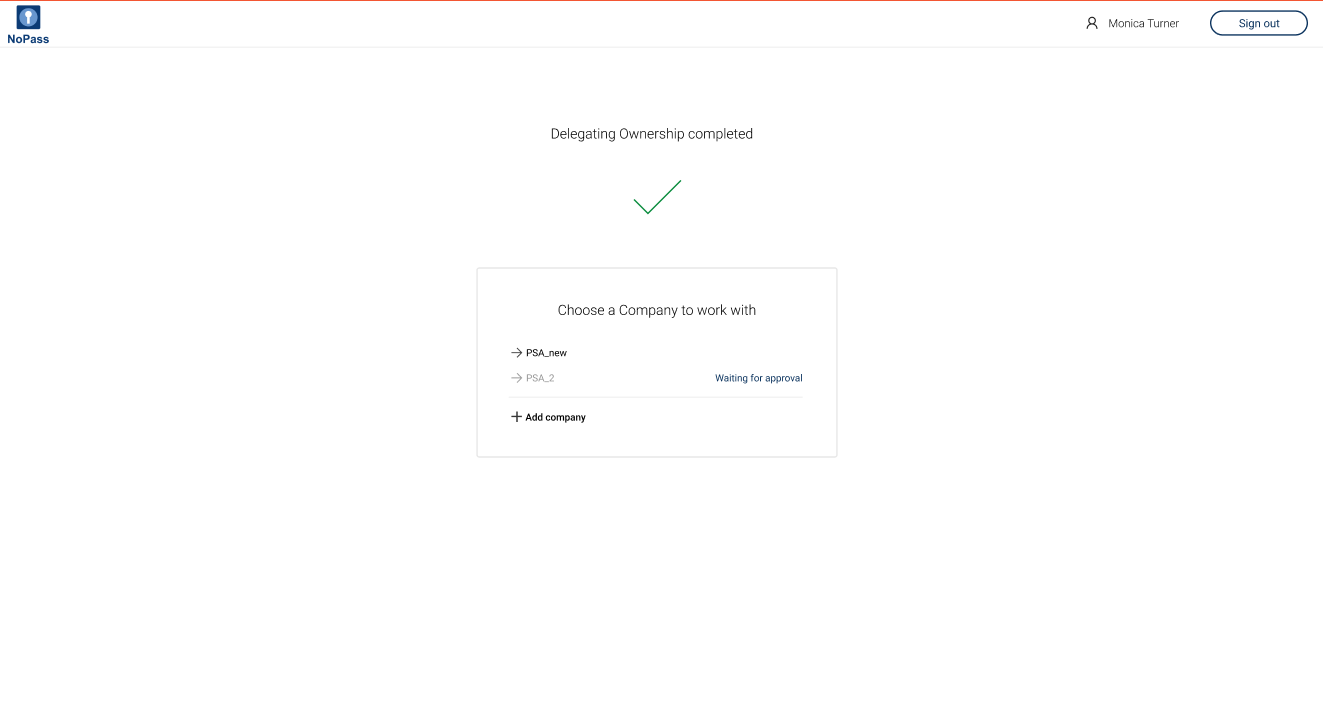
ii. If you have other Companies to work with, you are redirected to the following page.
ii. Otherwise, you are signed out from Admin Console and redirected to the landing page.
5. After the new Owner signs in to the Admin Console of the given Company, the following notification is displayed.
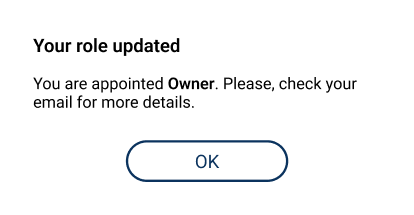
6. The new Owner is displayed in the list of Administrator's roles after clicking OK.
delegating the owner and financial administrator roles
Procedure
1. To delegate your Owner role, go to Administrators in the NoPass™ Admin Console.
2. Next to the Owner role, click Delete. The following dialogue box is displayed.
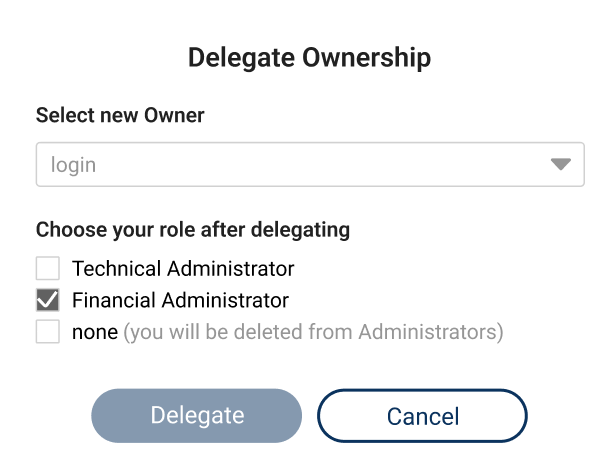
3. Select the Administrator from the drop-down list of logins or enter the login of the Administrator you want to delegate Ownership to. Note, that if you are the only Financial Administrator in the Company, your Financial Administrator role is selected by default.
4. Then, perform one of the following actions:
- To delegate your Owner role and retain the Financial Administrator role, perform the following steps:
i. Click Delegate.
ii. In the following dialogue box, click Delegate.
iii. After the Owner role is delegated, you are redirected to the Subscriptions page with the following notification displayed at the bottom of the page.
- To delegate both the Owner and the Financial Administrator roles, perform the following steps:
i. Clear the Financial Administrator check box and select either the Technical Administrator or the none check box.
ii. If you select the Technical Administrator check box, the following dialogue box is displayed:
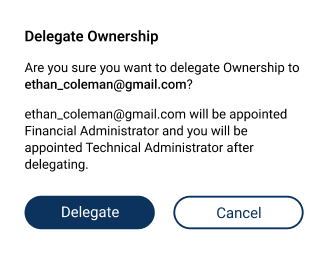
iii. After you click Delegate, your roles in the Admin Panel of the given Company are changed and the following notification is displayed at the bottom of the page.
iv. Next time the new Owner signs in to the Admin Panel of the given Company, the following dialogue box is displayed.
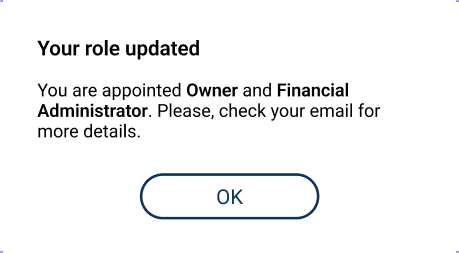
v. After clicking OK, the new roles are displayed in the Admin Console of the given Company.
vi. If you select the none check box, the following dialogue box is displayed:
vii. After you click Delegate, one of the following actions can occur:
a. If you have other Companies to work with, you are redirected to the following page.
b. Otherwise, you are signed out from Admin Console and redirected to the landing page.
next topic: Company management
previous topic: Administrators